How to Control Page Breaks in HTML to PDF Output
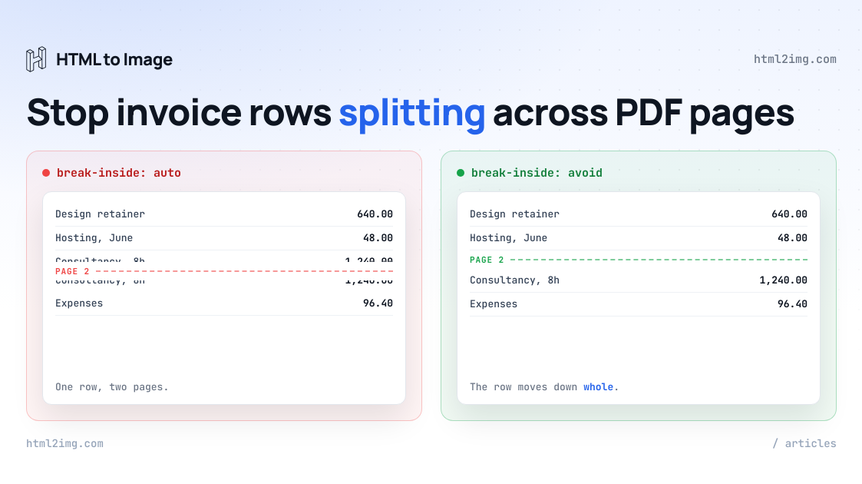
You render an invoice that looks right in the browser, open the PDF and find line item 14 cut in half by a page boundary. The description sits at the foot of page one and the amount sits at the top of page two. Or a certificate splits down the middle. Or a section heading is stranded alone at the bottom of a page while its content starts overleaf.
Automatic pagination is doing exactly what it was asked to do: fill a page, start another, repeat. It has no opinion about which parts of your document belong together. You supply that opinion in CSS, and it takes about six lines.
Page breaks are a stylesheet problem, not an API parameter
There is no avoid_splitting_rows flag on any HTML to PDF service worth using, because the renderer is a browser and browsers already have a standard for this. CSS Fragmentation gives you three properties:
Property | What it does | Values you will actually use |
|---|---|---|
| Controls splitting *within* an element |
|
| Forces or prevents a break *before* an element |
|
| Forces or prevents a break *after* an element |
|
The older page-break-inside, page-break-before and page-break-after properties still work. The spec defines them as legacy aliases and Chrome maps them onto the modern equivalents, so if your stylesheet already carries them you do not need to rewrite anything. New code should use the short forms.
These properties do nothing on screen. Continuous media has no page boundaries to avoid, so the browser computes them and moves on. They only mean something once the content is being cut into pages.
They are not print stylesheet rules, and that matters here
This is the part that catches people out when they move from Puppeteer to a rendering API.
HTML to Image renders PDFs with your normal screen CSS. Your @media print blocks are not applied, which is deliberate: the PDF is meant to look like the PNG of the same input, so there is no second rendering mode to keep in your head. If you have been fighting Chrome's print media emulation in a serverless function, that difference is the whole point.
It also means a rule hidden inside @media print never fires. Put the fragmentation properties in your ordinary stylesheet:
/* Applied when the document paginates. Inert in the browser. */
.invoice-row,
.line-items tr,
.card,
figure {
  break-inside: avoid;
}
Running this in production? Get an API key with 50 free credits, no card needed.
There is no cost to this. The rules sit in the cascade like any other declaration, change nothing about how the page looks in a browser tab, and take effect the moment the same markup is rendered with format: "pdf".
Here is what that buys you. Six 300px cards with no rules at all fill each page to the edge and split whichever card straddles the boundary. Add break-inside: avoid to .card and the renderer fits three per page, leaves the leftover space at the foot of the page and starts card four cleanly on the next one. Nothing else changes.
Keeping an invoice together
Line items are the classic failure. A row that splits is not just ugly, it is a document where a quantity and its price appear on different pages, which is the sort of thing an accounts department notices before it notices your typography.
.line-items tr {
  break-inside: avoid;
}

/* Never leave a heading alone at the foot of a page */
h2,
h3 {
  break-after: avoid;
}

/* Totals, payment terms and the signature block stay as one unit */
.totals,
.payment-terms,
.signature {
  break-inside: avoid;
}
break-after: avoid on headings is the quiet win. It tells the renderer that a heading may not be the last thing on a page, so if the following block will not fit, the heading travels with it. Two declarations remove an entire class of report that looks like it was assembled by accident.
The same rules apply to anything document shaped. The markup behind the invoice image template renders as a PDF with format: "pdf" and nothing else changed, so the same stylesheet serves both outputs. That is worth doing on purpose: keep one template, render it as an image for the confirmation screen and as a PDF for the emailed attachment.
Forcing a break where you want one
break-before: page starts a new page unconditionally. It is how you get one certificate per attendee, one statement per customer or one section per page out of a single render:
<style>
  .sheet { break-before: page; }
  .sheet:first-child { break-before: auto; }
</style>

<div class="sheet">…certificate for Priya…</div>
<div class="sheet">…certificate for Tom…</div>
<div class="sheet">…certificate for Andreas…</div>
The :first-child reset matters. Without it the first sheet forces a break before itself and you ship a PDF with a blank first page.
This pattern turns one API call into a multi-page batch. If you are generating certificates at scale, a single request that returns a 40 page document is considerably cheaper than 40 requests, and each page is still real vector text rather than an image of a certificate.
Table headers do not repeat, so repeat them yourself
Chrome's print pipeline is supposed to redraw <thead> at the top of each page a table spans. In practice, when the renderer paginates a long table, the header appears once at the start and every page after that carries bare rows. Test it against your own document before you rely on it.
The fix is to chunk in your template rather than hope in your CSS. Split the rows into page sized groups and give each group its own table:
const PER_PAGE = 24;

const chunks = [];
for (let i = 0; i < rows.length; i += PER_PAGE) {
  chunks.push(rows.slice(i, i + PER_PAGE));
}

const html = chunks.map((chunk, index) => `
  <table class="ledger${index > 0 ? ' continued' : ''}">
    <thead>
      <tr><th>Date</th><th>Reference</th><th>Description</th><th>Amount</th></tr>
    </thead>
    <tbody>
      ${chunk.map(r => `
        <tr>
          <td>${r.date}</td><td>${r.ref}</td><td>${r.description}</td><td>${r.amount}</td>
        </tr>`).join('')}
    </tbody>
  </table>
`).join('');
.ledger.continued {
break-before: page;
}
.ledger tr {
break-inside: avoid;
}You now control exactly where the table breaks, every page carries its own header and you can add a "continued" label to the repeated ones. Pick PER_PAGE by rendering once and counting, then leave it alone.
Running headers and footers with fixed positioning
Chrome repeats fixed position elements on every page of a printed document, which gives you a running footer without any of the @page margin box machinery that browsers do not implement:
.doc-footer {
  position: fixed;
  bottom: 0;
  left: 0;
  right: 0;
  padding: 12px 24px;
  border-top: 1px solid #e2e8f0;
  font-size: 12px;
  color: #64748b;
}

/* Reserve the space so content never slides under it */
body {
  padding-bottom: 64px;
}
That is enough for a company registration number, a document reference or a confidentiality line on every page.
What you cannot get this way is a page number. Page counters live in @page margin boxes, which Chrome has never supported, so content: counter(page) renders nothing. If numbered pages are a hard requirement, number the sheets yourself in the template where you already know how many there are, or use a dedicated PDF engine. The comparison pages are honest about where that line sits.
Card layouts fragment correctly
There is an old reflex that says flexbox and grid children ignore break-inside, so you rewrite a working layout in floats or tables before generating a PDF. That reflex is out of date. Modern Chrome fragments both properly, and a column of flex children or grid items with break-inside: avoid paginates the same way block elements do: the item that will not fit moves to the next page whole.
So you can keep the layout you already built. This is the practical difference between rendering in a real browser and rendering in a library like DomPDF or wkhtmltopdf, where modern layout either degrades or fails outright and the page break question never gets a chance to come up.
What is out of scope, stated plainly
A few things are worth knowing before you spend an afternoon on CSS that will not run.
Pages are A4 portrait. There is no page size or orientation parameter yet, so @page { size: A4 landscape; } is not the lever it would be in Puppeteer.
@media print blocks are not applied at all, as above. Everything the document needs belongs in your standard styles.
The image sizing parameters do not apply in PDF mode. Content reflows to the page width instead. If you are rendering a fixed width design that is wider than the page, pass scale_to_fit so it is scaled down rather than cropped at the right edge.
The stylesheet to start from
Drop this into any document you intend to render as a PDF and most pagination complaints disappear before anyone files them:
tr,
figure,
blockquote,
.card,
.totals,
.signature {
  break-inside: avoid;
}

h1, h2, h3, h4 {
  break-after: avoid;
}

.sheet {
  break-before: page;
}

.sheet:first-child {
  break-before: auto;
}
Then render the real document, not a sample of three rows, and look at every page boundary. Pagination bugs only appear at length, which is why they tend to ship. The free HTML to PDF converter runs the same renderer in the browser, so you can paste a template into it and check the breaks before you wire anything up.
Need invoices, certificates or reports rendered from HTML as real vector PDFs without running a browser yourself? Browse the templates gallery or read the docs to get started.

Written by
Mike Griffiths
Mike has spent the last 20 years crafting software solutions for all kinds of amazing businesses. He specializes in building digital products and APIs that make a real difference. As an expert in Laravel and a voting member on the PHP language, Mike helps shape the future of web development.