The YouTube Thumbnail Generator builds a 1280 by 720 PNG that meets YouTube's recommended thumbnail specification: 16:9 aspect ratio, under 2 MB in file size, and one of JPG, PNG, GIF, or BMP. The output is sized correctly for the desktop player, the mobile feed, the watch-next sidebar, and every other surface YouTube renders thumbnails on, which means a single render covers the entire distribution surface without needing per-format variants.
The category is dominated by Canva and a handful of YouTube-specific tools, all of which are excellent for one-off thumbnails but slow when a channel publishes weekly or daily. This generator runs server-side, takes a title, a face image, and a brand colour as JSON, and returns a hosted PNG URL. Channels with a consistent visual treatment can render every episode through the same template and ship the file directly to their upload pipeline without anyone touching a design tool.

How it works
Set the title and any secondary text
Drop the title (typically three to five large words) and any optional secondary text into the form. The renderer sizes the title to fill roughly half the canvas and treats the secondary text as a supporting label in a smaller weight.
Add a face image or video screenshot
Upload or paste the URL of a face image (most tested thumbnails include one) or a video screenshot. The renderer masks the image to a chosen shape and places it in the slot the layout reserves for it, usually the right or left third of the canvas.
Pick the brand colour and layout
Choose the brand colour for the title block and the background, and pick a layout (title-left with face-right, full-width title with face-corner, or split-colour with both elements stacked). The presets cover the layouts that test consistently well in retention studies.
Download or copy the URL
Download the PNG to upload directly to YouTube Studio, or copy the hosted CDN URL into a publishing pipeline that pushes the thumbnail through the YouTube API. The URL stays valid for as long as the source data does not change, which makes it safe to re-upload if YouTube re-encodes the thumbnail on its end.
When to use it
Weekly podcast or interview episodes
Podcast channels that publish weekly benefit from a template that handles the guest face, the guest name, and the episode title. Render at publish time, upload as the thumbnail, and every episode carries the same channel identity with the variable guest content slotted in.
Tutorial and how-to channels with high publishing cadence
Tutorial channels that publish three or more videos a week cannot afford to design each thumbnail from scratch. Render through the same template every time, keep the title pattern (verb-noun, big and readable), and the channel maintains a recognisable thumbnail style across the back catalogue.
Gaming channels with screenshot-driven thumbnails
Gaming channels that build thumbnails around in-game screenshots benefit from a template that masks the screenshot consistently and overlays the title in a brand-coloured block. The screenshot changes per video; the surrounding treatment stays identical, which builds channel recognition over time.
Course platforms with per-lesson thumbnails
Online course platforms that host hundreds of lesson videos benefit from generated thumbnails that include the module name, the lesson number, and the lesson title. Render at publish time from the course CMS, upload through the YouTube API, and the entire course library carries a coherent visual treatment without a designer in the loop.
Conference talks and event recordings
Conference organisers that upload talk recordings benefit from thumbnails that show the speaker, the talk title, and the event branding. Render per talk from the event schedule data, push to YouTube Studio in bulk, and the channel reads as a coherent record of the event rather than a mixed set of self-uploaded clips.
Examples
Title left, face right
Title block fills the left half in the channel brand colour, with the host or guest face on the right. The most-tested layout for interview and podcast content.

Full-width title with corner face
Title fills the width with the face tucked into the lower-right corner. Suits tutorials where the title carries the search intent and the face is supporting context.
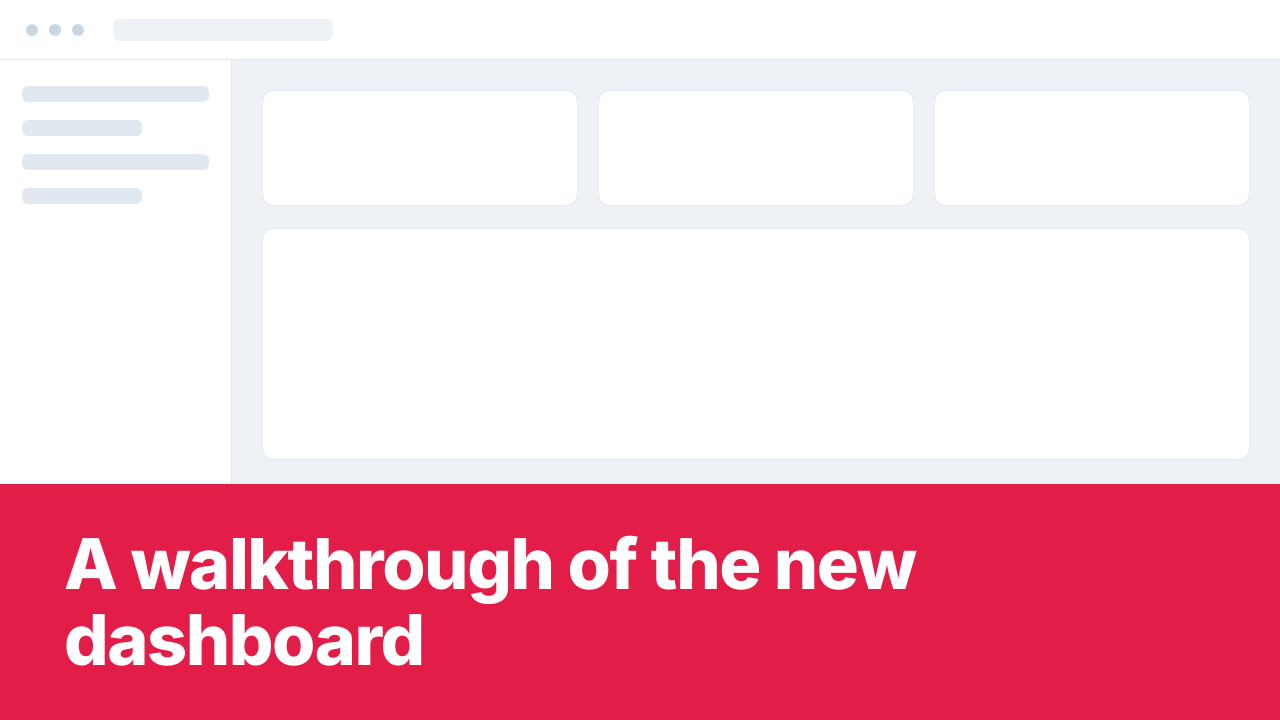
Screenshot-led with overlay title
In-game or product screenshot fills the canvas with a brand-coloured title block overlaid on the lower third. The default for gaming, software demo, and product walk-through content.
Use it from your code
The YouTube Thumbnail Generator runs on the HTML to Image API, and so can you. Every snippet below is a
complete request: swap YOUR_API_KEY for a key from your dashboard and it runs
as-is. The response carries a url for the finished file.
curl -X POST https://app.html2img.com/api/v1/templates/youtube-thumbnail \
  -H "X-API-Key: YOUR_API_KEY" \
  -H "Content-Type: application/json" \
-d '{"title":"I built a $0 SaaS in 7 days","eyebrow":"CASE STUDY","duration":"14:22","host_name":"Devon Reed","host_avatar_url":"https://i.pravatar.cc/160?img=33","background_image_url":"https://picsum.photos/seed/yt-thumb/1280/720","background_color":"#0F172A","accent_color":"#FACC15"}'<?php
$payload = [
'title' => 'I built a $0 SaaS in 7 days',
'eyebrow' => 'CASE STUDY',
'duration' => '14:22',
'host_name' => 'Devon Reed',
'host_avatar_url' => 'https://i.pravatar.cc/160?img=33',
'background_image_url' => 'https://picsum.photos/seed/yt-thumb/1280/720',
'background_color' => '#0F172A',
'accent_color' => '#FACC15',
];
$ch = curl_init('https://app.html2img.com/api/v1/templates/youtube-thumbnail');
curl_setopt_array($ch, [
CURLOPT_POST => true,
CURLOPT_RETURNTRANSFER => true,
CURLOPT_HTTPHEADER => [
'X-API-Key: YOUR_API_KEY',
'Content-Type: application/json',
],
CURLOPT_POSTFIELDS => json_encode($payload),
]);
$response = json_decode(curl_exec($ch), true);
curl_close($ch);
echo $response['url'];const response = await fetch('https://app.html2img.com/api/v1/templates/youtube-thumbnail', {
method: 'POST',
headers: {
'X-API-Key': 'YOUR_API_KEY',
'Content-Type': 'application/json',
},
body: JSON.stringify({
"title": "I built a $0 SaaS in 7 days",
"eyebrow": "CASE STUDY",
"duration": "14:22",
"host_name": "Devon Reed",
"host_avatar_url": "https://i.pravatar.cc/160?img=33",
"background_image_url": "https://picsum.photos/seed/yt-thumb/1280/720",
"background_color": "#0F172A",
"accent_color": "#FACC15"
}),
});
const { url } = await response.json();
console.log(url);import requests
response = requests.post(
'https://app.html2img.com/api/v1/templates/youtube-thumbnail',
headers={'X-API-Key': 'YOUR_API_KEY'},
json={
'title': 'I built a $0 SaaS in 7 days',
'eyebrow': 'CASE STUDY',
'duration': '14:22',
'host_name': 'Devon Reed',
'host_avatar_url': 'https://i.pravatar.cc/160?img=33',
'background_image_url': 'https://picsum.photos/seed/yt-thumb/1280/720',
'background_color': '#0F172A',
'accent_color': '#FACC15',
},
)
print(response.json()['url'])using System;
using System.Collections.Generic;
using System.Net.Http;
using System.Net.Http.Json;
var client = new HttpClient();
client.DefaultRequestHeaders.Add("X-API-Key", "YOUR_API_KEY");
var payload = new
{
title = "I built a $0 SaaS in 7 days",
eyebrow = "CASE STUDY",
duration = "14:22",
host_name = "Devon Reed",
host_avatar_url = "https://i.pravatar.cc/160?img=33",
background_image_url = "https://picsum.photos/seed/yt-thumb/1280/720",
background_color = "#0F172A",
accent_color = "#FACC15",
};
var response = await client.PostAsJsonAsync("https://app.html2img.com/api/v1/templates/youtube-thumbnail", payload);
var result = await response.Content.ReadFromJsonAsync<Dictionary<string, string>>();
Console.WriteLine(result["url"]);require 'net/http'
require 'json'
uri = URI('https://app.html2img.com/api/v1/templates/youtube-thumbnail')
request = Net::HTTP::Post.new(uri)
request['X-API-Key'] = 'YOUR_API_KEY'
request['Content-Type'] = 'application/json'
request.body = {
title: "I built a $0 SaaS in 7 days",
eyebrow: "CASE STUDY",
duration: "14:22",
host_name: "Devon Reed",
host_avatar_url: "https://i.pravatar.cc/160?img=33",
background_image_url: "https://picsum.photos/seed/yt-thumb/1280/720",
background_color: "#0F172A",
accent_color: "#FACC15",
}.to_json
response = Net::HTTP.start(uri.hostname, uri.port, use_ssl: true) do |http|
http.request(request)
end
puts JSON.parse(response.body)['url']Tips
Limit the title to four or five words
YouTube thumbnails are read at 168 by 94 pixels in the mobile feed, where anything longer than five words turns illegible. Trim the title to the verb and the noun (or the noun and the result) and let the video metadata carry the rest of the context.
Use a face with a clear expression
Tested thumbnails consistently outperform tested non-face thumbnails on most channel types, and within face thumbnails, ones with a clear expression (surprise, focus, concentration) outperform neutral ones. A face looking towards the title block reads better than a face looking off-canvas.
Test contrast at thumbnail scale
Open the thumbnail in YouTube Studio preview at the small mobile-feed scale before publishing. If the title is hard to read at that size, the click-through rate suffers. Higher contrast (white text on a saturated colour, or black text on yellow) tends to survive the small-size test better than low-contrast pairings.
Keep the file under 2 MB
YouTube caps thumbnail file size at 2 MB. Default-DPI renders sit between 200 KB and 800 KB depending on the layout and the image content, which gives substantial headroom. Avoid 2x DPI renders for thumbnails specifically since they push past the cap with photographic backgrounds.
Avoid clickbait promises the video does not pay off
YouTube has tuned its recommendation system to weight retention as well as click-through, which penalises misleading thumbnails over time. Match the thumbnail promise to the actual video content, and the channel grows faster than one that wins clicks but loses watch time.
Frequently asked questions
What size should a YouTube thumbnail be?
YouTube recommends 1280 by 720 pixels at a 16:9 aspect ratio, in JPG, PNG, GIF, or BMP format, under 2 MB. The same file is rescaled by YouTube for every surface (desktop, mobile, sidebar, search result), so a single 1280 by 720 render covers the entire distribution surface.
Why does my thumbnail look blurry on mobile?
YouTube re-compresses thumbnails for the mobile feed, which softens thin type and detailed photography. Render with bold type at a large point size, high contrast between text and background, and minimal fine detail in any photographic content. The compressed result then reads cleanly at 168 by 94 pixels.
Can I A/B test thumbnails?
Yes, YouTube has built-in thumbnail testing as part of YouTube Studio, which serves different thumbnails to different viewers and reports the click-through rate by variant. Generate three variants per video and let YouTube Studio pick the winner over the first few days.
Does the file format matter?
PNG and JPG both work, with PNG producing crisper edges on text and graphics and JPG producing smaller files for photographic content. Most channels use PNG by default because the file size headroom is generous and the edge quality matters more than the byte count.
Can I include emoji in the title?
Yes, the renderer supports colour emoji through the system font fallback. Emoji read well when they reinforce the title (a red arrow for a price drop, a question mark for a mystery), and read poorly when they substitute for clarity. Use them as accents rather than as primary type.
How do I upload generated thumbnails in bulk?
YouTube exposes a Thumbnail.set endpoint in the Data API that accepts a binary file or a URL. Channels with high publishing cadence render through this generator at publish time and call the YouTube API in the same script, which removes the manual upload step entirely.
Are there content rules I need to follow?
YouTube prohibits thumbnails that are misleading, sexually suggestive, or that include shocking imagery, and applies the same content standards to thumbnails as to video content. Misleading thumbnails specifically can trigger a strike that limits the channel's reach for weeks, so accuracy is enforced rather than just suggested.
Related templates
Related guides
How to Generate YouTube Thumbnails from an API and Set Them on Every Video
YouTube thumbnail API guide: render 1280x720 thumbnails from JSON or your own HTML, then set them on every video with the YouTube Data API. Real output shown.
Dynamic OG Images in Next.js Without @vercel/og (1,200×630)
Hit a wall with Satori's CSS limits? Here's how to generate dynamic OG images in Next.js using a real browser renderer, with full working code.
More tools
Website Screenshot Tool
Enter any public URL and get back a PNG screenshot, viewport or full page.
Certificate Generator
Generate course completion certificates with recipient name, date, and signature.
Code Screenshot Generator
Turn syntax-highlighted code into a shareable PNG with a custom theme and window chrome.