The Website Screenshot Tool loads a public URL in a server-side Chrome, waits for the page to finish rendering, and returns a PNG. JavaScript executes, webfonts and stylesheets load, and lazy-loaded content that appears during a full-page scroll is captured with the rest. You can take the 1280 by 800 viewport, the way the page looks when it first loads, or the full page as one tall image from the header to the footer.
The reason to do this on a server rather than with a browser extension is repeatability. A screenshot taken on your laptop carries your window size, your zoom level, your extensions, your logged-in session, and whatever cookie banner you had already dismissed. A server-side capture takes the same anonymous, fixed-viewport shot every time, which is what makes it useful for monitoring a page over months, building thumbnails for a directory, or capturing evidence that has to look the same in six months as it does today.
How it works
Paste the page URL
Enter the full address of a public page including https. The capture is anonymous, so what you get is what a first-time, logged-out visitor sees.
Choose full page or viewport
Full page scrolls the entire document into one tall image, which is the default and what most people want. Untick it to capture just the 1280 by 800 viewport, which is the right choice for thumbnails and above-the-fold comparisons.
The page renders in real Chrome
A server-side browser fetches the page, runs its JavaScript, and waits for the render to settle. Single-page apps and client-rendered content are captured after they paint, not as an empty shell.
Download or copy the hosted URL
The PNG is served from the CDN at a stable URL. Download it, embed it, or store the URL against whatever record the screenshot belongs to.
When to use it
Thumbnails for directories and galleries
A link directory, a portfolio, or a "sites built with X" gallery needs a picture of every entry. Generating them from the URL keeps the whole set consistent in size and framing, and lets you refresh them all when a site redesigns.
Visual change monitoring
Capture the same URL on a schedule and diff the images to see when a competitor changed their pricing page or when your own deploy moved something it should not have. A fixed viewport is what makes that comparison meaningful.
Evidence and compliance records
A dated screenshot of a promotion as it ran, or a disclosure as it appeared, is the record teams reach for when a question comes up months later. Server-side capture means every record in the archive was produced the same way.
Documentation and support screenshots
Screenshots in docs go stale the moment the UI moves. Regenerating them from URLs as part of the build keeps a documentation set current without anyone reopening a screenshot tool.
Previews in dashboards and reports
Showing a thumbnail of the actual page next to its metrics makes a report far easier to scan than a column of URLs. One call per row, cached, and the report renders with pictures.
Examples

A full-page capture
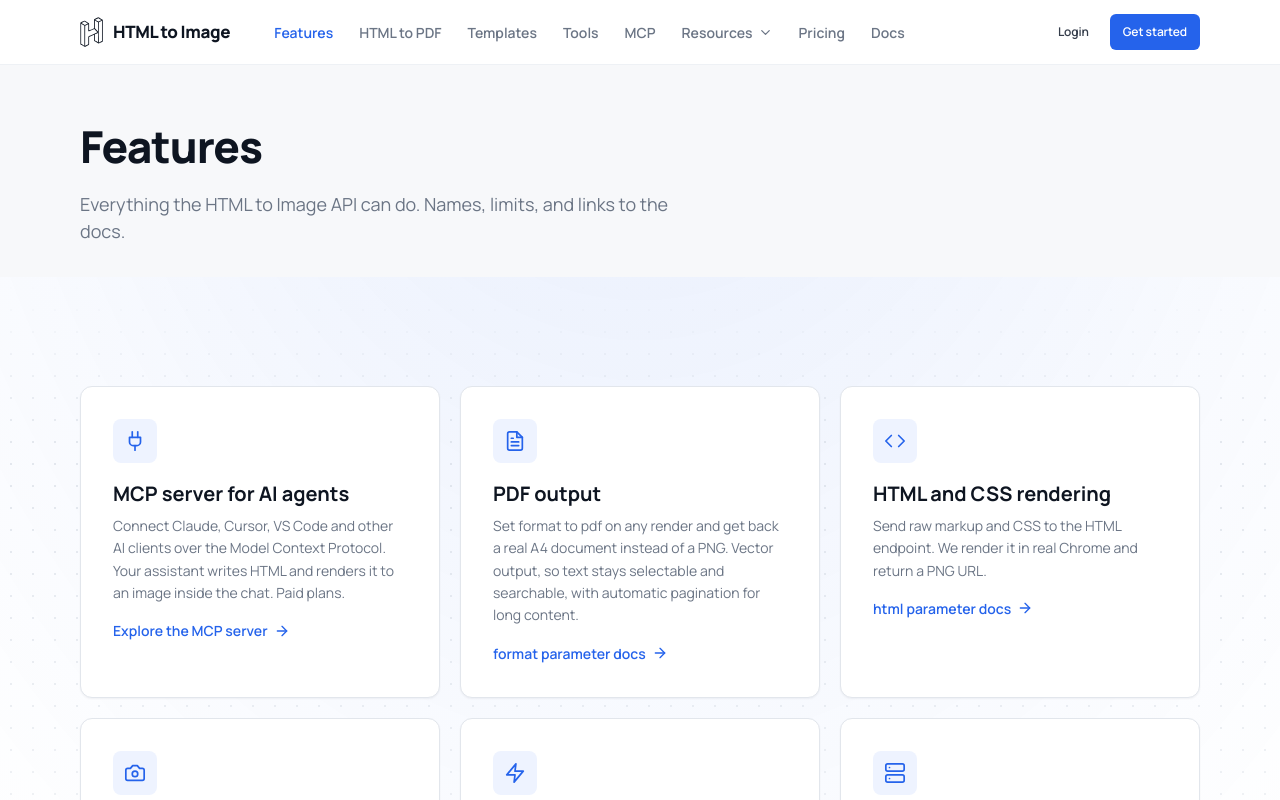
A marketing page captured from the header to the footer as one tall image, with lazy-loaded sections rendered because the capture scrolls the document.
A viewport capture
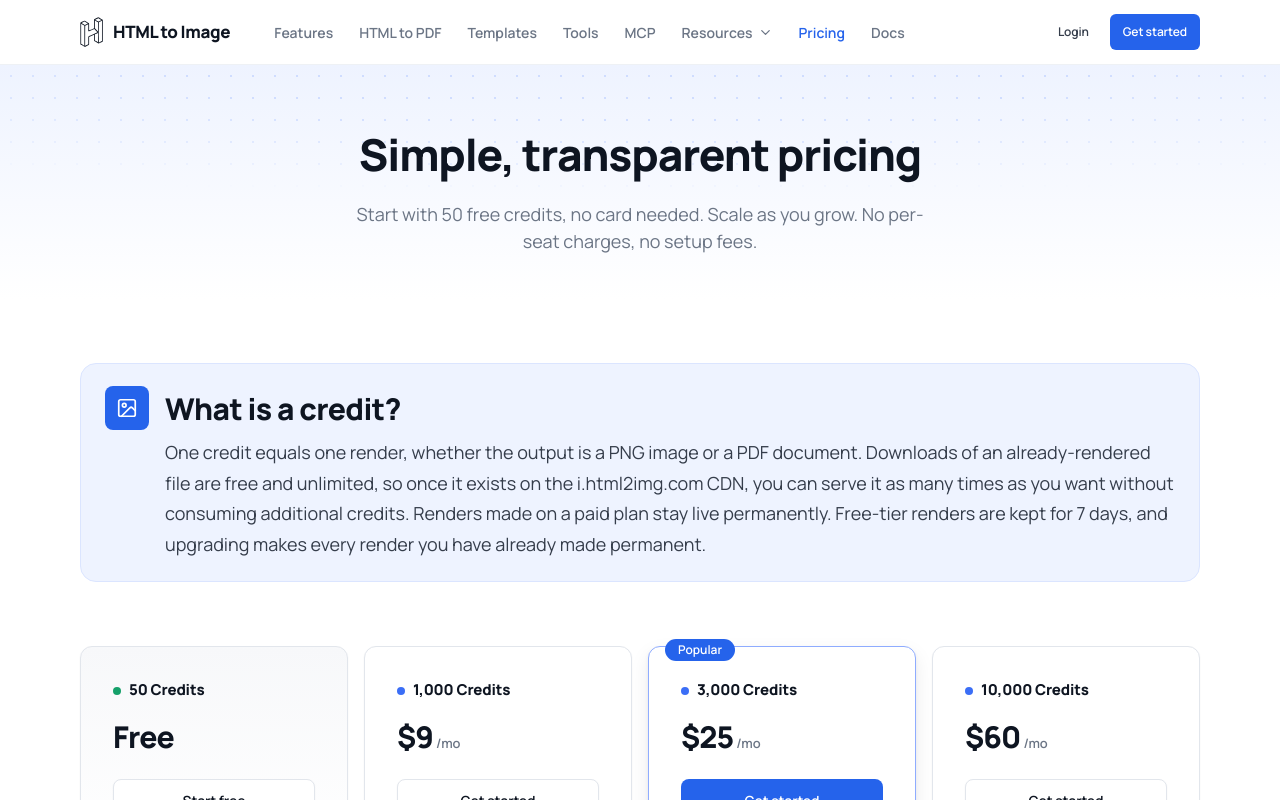
The same page captured at 1280 by 800, showing only what a visitor sees before scrolling. This is the shape you want for a directory thumbnail.

A documentation page
A long docs page with a sidebar and code blocks, captured full page. Text stays crisp because the capture is a real render rather than an upscaled thumbnail.
Use it from your code
The Website Screenshot Tool runs on the HTML to Image API, and so can you. Every snippet below is a
complete request: swap YOUR_API_KEY for a key from your dashboard and it runs
as-is. The response carries a url for the finished file.
curl -X POST https://app.html2img.com/api/screenshot \
  -H "X-API-Key: YOUR_API_KEY" \
  -H "Content-Type: application/json" \
-d '{"url":"https://example.com","width":1280,"fullpage":true,"dpi":2}'<?php
$payload = [
'url' => 'https://example.com',
'width' => 1280,
'fullpage' => true,
'dpi' => 2,
];
$ch = curl_init('https://app.html2img.com/api/screenshot');
curl_setopt_array($ch, [
CURLOPT_POST => true,
CURLOPT_RETURNTRANSFER => true,
CURLOPT_HTTPHEADER => [
'X-API-Key: YOUR_API_KEY',
'Content-Type: application/json',
],
CURLOPT_POSTFIELDS => json_encode($payload),
]);
$response = json_decode(curl_exec($ch), true);
curl_close($ch);
echo $response['url'];const response = await fetch('https://app.html2img.com/api/screenshot', {
method: 'POST',
headers: {
'X-API-Key': 'YOUR_API_KEY',
'Content-Type': 'application/json',
},
body: JSON.stringify({
"url": "https://example.com",
"width": 1280,
"fullpage": true,
"dpi": 2
}),
});
const { url } = await response.json();
console.log(url);import requests
response = requests.post(
'https://app.html2img.com/api/screenshot',
headers={'X-API-Key': 'YOUR_API_KEY'},
json={
'url': 'https://example.com',
'width': 1280,
'fullpage': True,
'dpi': 2,
},
)
print(response.json()['url'])using System;
using System.Collections.Generic;
using System.Net.Http;
using System.Net.Http.Json;
var client = new HttpClient();
client.DefaultRequestHeaders.Add("X-API-Key", "YOUR_API_KEY");
var payload = new
{
url = "https://example.com",
width = 1280,
fullpage = true,
dpi = 2,
};
var response = await client.PostAsJsonAsync("https://app.html2img.com/api/screenshot", payload);
var result = await response.Content.ReadFromJsonAsync<Dictionary<string, string>>();
Console.WriteLine(result["url"]);require 'net/http'
require 'json'
uri = URI('https://app.html2img.com/api/screenshot')
request = Net::HTTP::Post.new(uri)
request['X-API-Key'] = 'YOUR_API_KEY'
request['Content-Type'] = 'application/json'
request.body = {
url: "https://example.com",
width: 1280,
fullpage: true,
dpi: 2,
}.to_json
response = Net::HTTP.start(uri.hostname, uri.port, use_ssl: true) do |http|
http.request(request)
end
puts JSON.parse(response.body)['url']Tips
Expect cookie banners on the first visit
The capture arrives with no cookies, so consent banners and newsletter popups appear exactly as they do for a new visitor. The API accepts a css parameter that lets you hide selectors before the shot, which is the cleanest way to remove them.
Give slow pages more time
Pages that load data in stages can be caught mid-paint. The API's ms_delay parameter holds the capture for a fixed period, and wait_for_selector holds it until a particular element exists, which is more reliable than guessing at a delay.
Capture one element with a selector
Passing a selector parameter crops the capture to a single element, which is how you get a clean picture of a pricing table or a chart without the page furniture around it.
Use dpi 2 for retina screenshots
A screenshot displayed at its natural size on a high-density screen looks soft. Rendering at dpi 2 doubles the pixels while keeping the layout identical, so the image stays sharp when it is displayed at half its pixel size.
Full page has a practical limit
An infinite-scroll page has no bottom, and a very long capture becomes an enormous file that nothing displays comfortably. For those pages a viewport capture, or a selector crop of the section you actually care about, is the better tool.
Frequently asked questions
What viewport size is used?
1280 by 800, a standard desktop viewport. A full-page capture keeps the 1280 width and extends the height to the full document.
Does JavaScript on the page run?
Yes. The page loads in real Chrome, so React, Vue and other client-rendered apps are captured after they paint. Content that only appears after a click or a hover is not captured, because nobody is there to click.
Can I screenshot a page behind a login?
No. The capture is anonymous with no cookies or session, so a URL behind authentication renders as its sign-in page. For your own app the better approach is to render the underlying markup through the HTML endpoint, which needs no session.
Can I capture just part of a page?
Yes, through the API. Pass a selector parameter and the capture is cropped to that element, which is the usual way to get a clean shot of one component.
How do I remove cookie banners?
Pass a css parameter on the API call with a rule hiding the banner's selector. It is injected before the capture, so the element is gone from the screenshot rather than dismissed after the fact.
Can I get a PDF instead of a PNG?
Yes. Pass format as pdf, or use the URL to PDF Converter, which is the same call with the format already set. PDF gives you a paginated A4 document with selectable text rather than a picture.
How do I automate screenshots?
Post the URL to the screenshot endpoint with your API key. Passing a webhook_url runs the capture asynchronously and delivers the result by callback, which is the pattern to use when screenshotting many URLs at once.
How much does it cost?
Free on this page, at three captures an hour and ten a day per visitor. A free account includes 50 renders with full API access, and paid plans cover directory and monitoring volumes.
Related templates
Related guides
How to capture full-page screenshots of any website
Full-page screenshots of modern sites break on lazy loading, sticky headers and cookie banners. Capture the whole page cleanly in one API request.
Generate a screenshot using cURL
Learn how to generate a screenshot using cURL using the HTML to Image API. With full examples, including dimensions and webhook usage.
How to Screenshot a Single Element From a Live URL
Screenshot one element from a live URL as a PNG in one API call. Pass a CSS selector to crop to a pricing table, chart or hero, no headless browser to run.
How to Migrate from ApiFlash to HTML to Image
Migrating from ApiFlash? Map every urltoimage parameter to its HTML to Image equivalent, move your key out of the query string and cut over safely.
More tools
URL to PDF Converter
Turn any public web page into an A4 PDF with selectable text, straight from its URL.
YouTube Thumbnail Generator
Build a 1280 by 720 YouTube thumbnail from a title, a face, and a brand colour.
Certificate Generator
Generate course completion certificates with recipient name, date, and signature.