How to capture full-page screenshots of any website
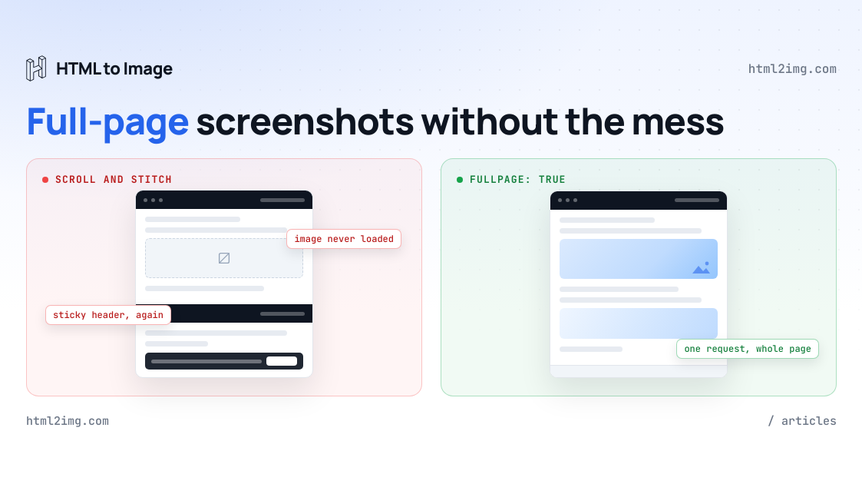
A viewport screenshot cuts the page off at the fold. The usual workarounds make things worse. Browser extensions scroll the page and stitch the frames together, so every lazy-loaded image below the fold arrives as a grey placeholder and the sticky header stamps itself into the capture every few hundred pixels. Self-hosted Puppeteer with fullPage: true gets closer, but now you are patching Chrome versions on a server to produce an image with a cookie banner baked across the middle of it.
The Screenshot API captures the entire scroll height of a URL in one request, in a real Chrome browser, with parameters for exactly the things that break full-page captures: late content, overlays and page chrome you never wanted in the shot.
Why full-page captures go wrong
Modern pages are built for a viewport, not a camera. Four patterns cause most broken captures:
Lazy loading.
loading="lazy"attributes andIntersectionObserverhooks mean below-the-fold images and components do not load until they approach the viewport. A stitching tool photographs the placeholders.Sticky and fixed positioning. Headers and floating bars paint relative to the viewport, so scroll-and-stitch tools capture them once per frame and the finished image repeats the navigation down the whole page.
Overlays. Cookie consent, chat bubbles and newsletter modals sit on top of the content and end up baked into the capture.
Late JavaScript. Charts, embeds and client-rendered sections finish after the
loadevent. Capture too early and you get spinners.
None of these are bugs in the page. They are the page working as designed, photographed badly.
One request, the whole page
The Screenshot API loads the URL in a current headless Chrome build, runs its JavaScript, and returns a hosted PNG. Set fullpage to true and the capture covers the entire scroll height in a single image, however long the page runs. The viewport width you pass is respected and the final image height matches the content.
curl -X POST https://app.html2img.com/api/screenshot \
  -H "X-API-Key: $HTML2IMG_API_KEY" \
  -H "Content-Type: application/json" \
  -d '{
    "url": "https://en.wikipedia.org/wiki/Screenshot",
    "width": 1440,
    "fullpage": true
  }'
Running this in production? Get an API key with 50 free credits, no card needed.
The response carries a URL on the CDN that is live the moment you receive it:
{
  "success": true,
  "id": "f90c7615-bbeb-47aa-bb69-ab643c90e36e",
  "credits_remaining": 996,
  "url": "https://i.html2img.com/image-1786882079164-441207.png"
}
Because the page is rendered in one browser context rather than stitched from frames, sticky headers appear once, where the document puts them. That alone removes the ugliest artefact of extension-based captures.
Hold the capture for late content
Two parameters control timing. wait_for_selector blocks the capture until an element exists in the DOM, which is the reliable option when you know what you are waiting for: a chart's rendered <svg>, a data table, the last section of the page. ms_delay adds a fixed pause of 1 to 5,000 milliseconds for animations and images that need a moment to paint.
{
  "url": "https://example.com/annual-report",
  "width": 1440,
  "fullpage": true,
  "wait_for_selector": "#appendix",
  "ms_delay": 800
}
Waiting on a selector near the bottom of the page is a simple trick for lazy-heavy pages: if the footer's last widget exists, everything above it has had a chance to load. One validation detail: omit ms_delay entirely rather than sending 0, which the API rejects.
Strip the parts you never wanted
The css parameter injects a stylesheet into the page before capture. Use it to delete overlays rather than capturing around them:
{
  "url": "https://example.com/pricing",
  "fullpage": true,
  "css": "#cookie-banner, .intercom-lightweight-app, .newsletter-modal { display: none !important; }"
}
The same parameter tames infinite scroll. A feed page has no natural bottom, so cap it and the capture stays predictable:
{
  "url": "https://example.com/feed",
  "fullpage": true,
  "css": "main.feed { max-height: 12000px; overflow: hidden; }"
}
The DPI trap
One gotcha worth knowing before you file a support ticket: the dpi parameter (device pixel ratio, 1 to 4) is forced to 1 whenever fullpage is true. If you need a sharper full-page image, capture at a wider viewport, say "width": 2560, and scale down in your layout. If only one region needs to be sharp, skip fullpage and pass a selector instead. The API crops to that element's bounding box and dpi behaves normally there, a technique covered in full in capturing a single element from a URL.
Long pages want a webhook
Full-page renders of genuinely long pages take more time than a viewport shot. Rather than holding an HTTP connection open, pass a webhook_url and the API will POST the finished image URL to your endpoint when the render completes:
{
  "url": "https://example.com/docs/complete-reference",
  "fullpage": true,
  "webhook_url": "https://your-app.com/webhooks/screenshots"
}
Fire the requests from a queue job, store the URLs as they arrive, and a nightly archive of fifty pages costs you no worker time at all.
A complete example
Everything together in Node, capturing a clean full-page archive shot of a marketing page:
const response = await fetch('https://app.html2img.com/api/screenshot', {
  method: 'POST',
  headers: {
    'X-API-Key': process.env.HTML2IMG_API_KEY,
    'Content-Type': 'application/json',
  },
  body: JSON.stringify({
    url: 'https://example.com/product/launch',
    width: 1440,
    fullpage: true,
    wait_for_selector: 'footer .newsletter-form',
    ms_delay: 500,
    css: '#cookie-banner, .chat-widget { display: none !important; }',
  }),
});

if (!response.ok) {
  throw new Error(`Screenshot failed: ${response.status}`);
}

const { url } = await response.json();
// https://i.html2img.com/image-....png, hosted and ready to embed
Downloads from the CDN never cost a credit, so store the URL and fetch the bytes whenever you need them.
When you do not need the full page
Fixed-size captures are the default behaviour: pass width and height, skip fullpage, and you get exactly the viewport you asked for. The basics are covered in generating a screenshot using cURL, and the free website screenshot tool runs the same renderer in your browser if you want to test a URL before writing any code.
And if you are currently keeping your own headless Chrome alive to do any of this, the Puppeteer on Lambda comparison makes the case for retiring it.
Need full-page captures, OG images or invoices rendered from HTML without running a browser yourself? Browse the templates gallery or read the docs to get started.

Written by
Mike Griffiths
Mike has spent the last 20 years crafting software solutions for all kinds of amazing businesses. He specializes in building digital products and APIs that make a real difference. As an expert in Laravel and a voting member on the PHP language, Mike helps shape the future of web development.