The URL to PDF Converter fetches a public web page in a server-side browser, waits for it to render, and returns the result as a PDF. JavaScript runs, stylesheets and webfonts load, and the finished layout is set on A4 portrait pages that paginate automatically, so a long article becomes a tidy multi-page document rather than one impossibly tall image. Wherever the page uses real text, the PDF keeps a real text layer: selectable, searchable, and readable by screen readers.
Saving a page from the browser menu works until the output has to be consistent. Print dialogs apply print stylesheets, add their own headers and footers, and produce different files on different machines, which becomes a problem the moment a PDF is a record rather than a convenience. This converter renders every page the same way on the server, and the same call is available through the HTML to Image API: post a URL to the screenshot endpoint with format set to pdf and archive the returned file from a script, a cron job, or a compliance pipeline.
How it works
Paste the page URL
Enter the full address of a public page, including the https prefix. The renderer visits the page as an anonymous, logged-out visitor, so what it captures is what a first-time reader would see.
The page loads in a real browser
A server-side browser engine fetches the page, runs its JavaScript, and loads its styles and fonts exactly as a desktop visit would. Single-page apps and client-rendered content are captured after they finish rendering, not as an empty shell.
The content is set on A4 pages
Once rendered, the page is laid out on A4 portrait pages and paginated automatically. Text on the page stays text in the PDF, and vector elements such as SVG stay sharp at any zoom.
Download or copy the hosted URL
The finished PDF is served from the CDN as application/pdf. Download it for filing, or keep the hosted URL and link to it from an order record, a ticket, or an archive index.
When to use it
Archiving pages that will change
Terms of service, pricing pages, and policy documents get edited without notice. Converting the page to PDF freezes its exact content and layout at a point in time, in a format that opens fine even when the original site no longer exists.
Compliance and evidence trails
Teams in regulated industries keep copies of what was published: a promotion as it ran, a disclosure as it appeared, a claim as it was worded. A server-rendered PDF is a consistent, shareable record of exactly that, produced the same way for every page captured.
Receipts and confirmations from web portals
Suppliers that only show receipts inside a web portal leave you screenshotting for the accounts folder. Converting the receipt page to PDF produces a document that fits the same filing system as every emailed invoice, with the amounts still searchable.
Reading long articles offline
A long read converted to PDF paginates cleanly, keeps its images, and travels to devices with no connection. Because the text layer is real, highlights and annotations work in any PDF reader.
Attaching documentation to releases and tickets
Release notes, changelogs, and how-to pages often need to travel with an email, a support ticket, or an audit pack. Converting the live page keeps the attachment identical to what was published, with none of the copy-paste reformatting.
Examples
 Open PDF
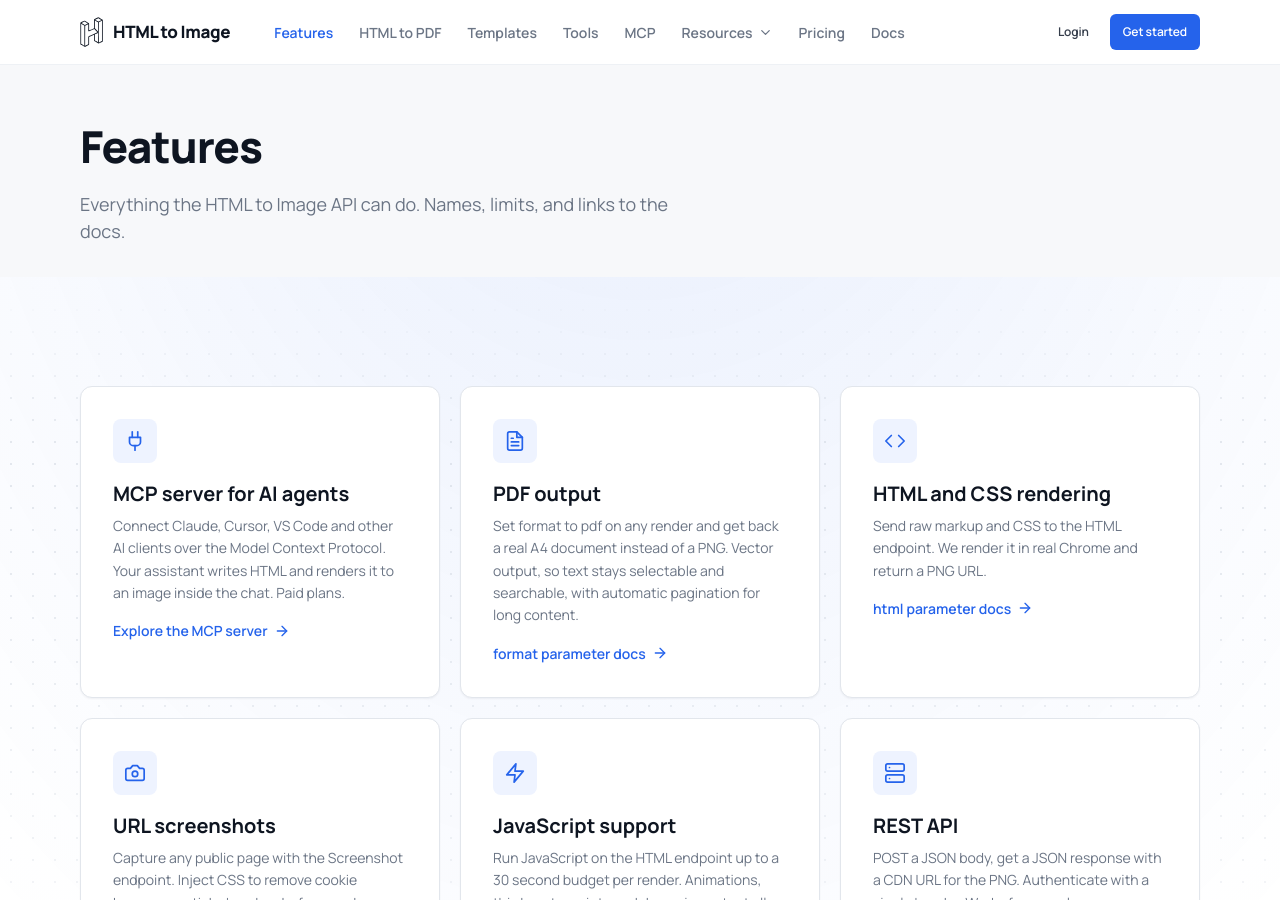
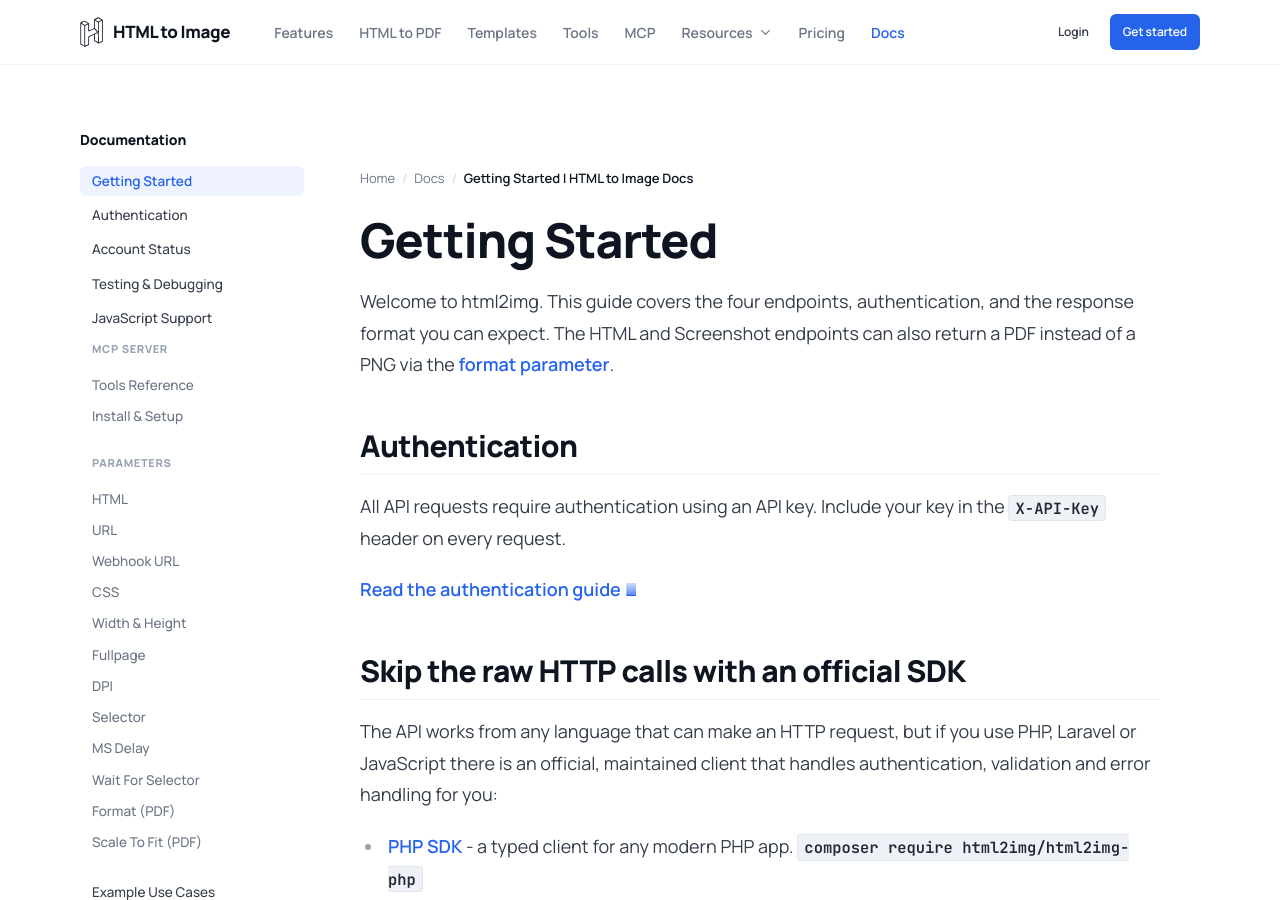
 A documentation page as a paginated PDF
A long documentation page flowed onto A4 pages, with headings, code blocks and the sidebar preserved as selectable text rather than flattened into a picture.
 Open PDF
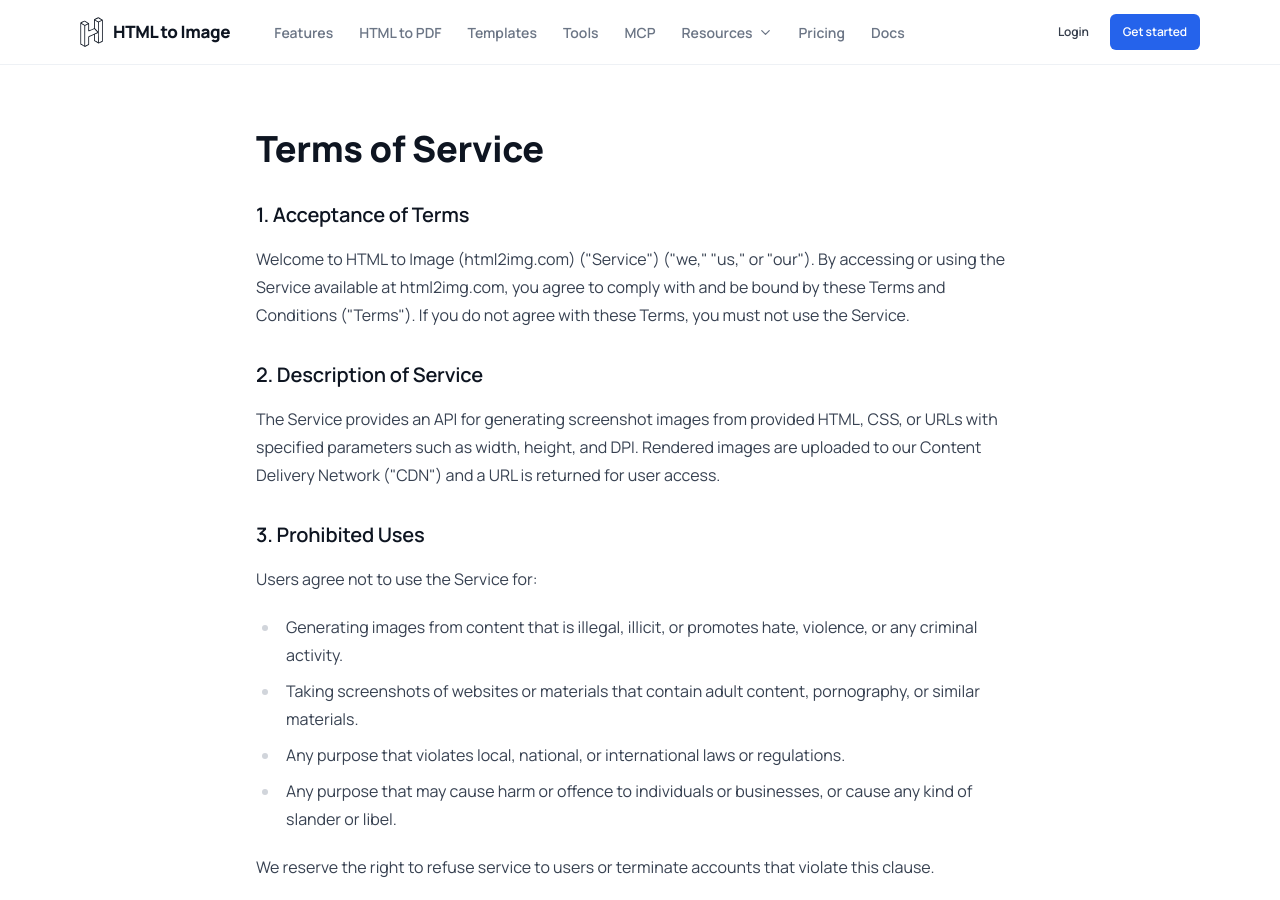
 A terms of service snapshot
A legal page captured as it appeared on a given date, ready for a compliance archive. The clause wording stays searchable, so retrieving it later is a text search rather than a re-read.
 Open PDF
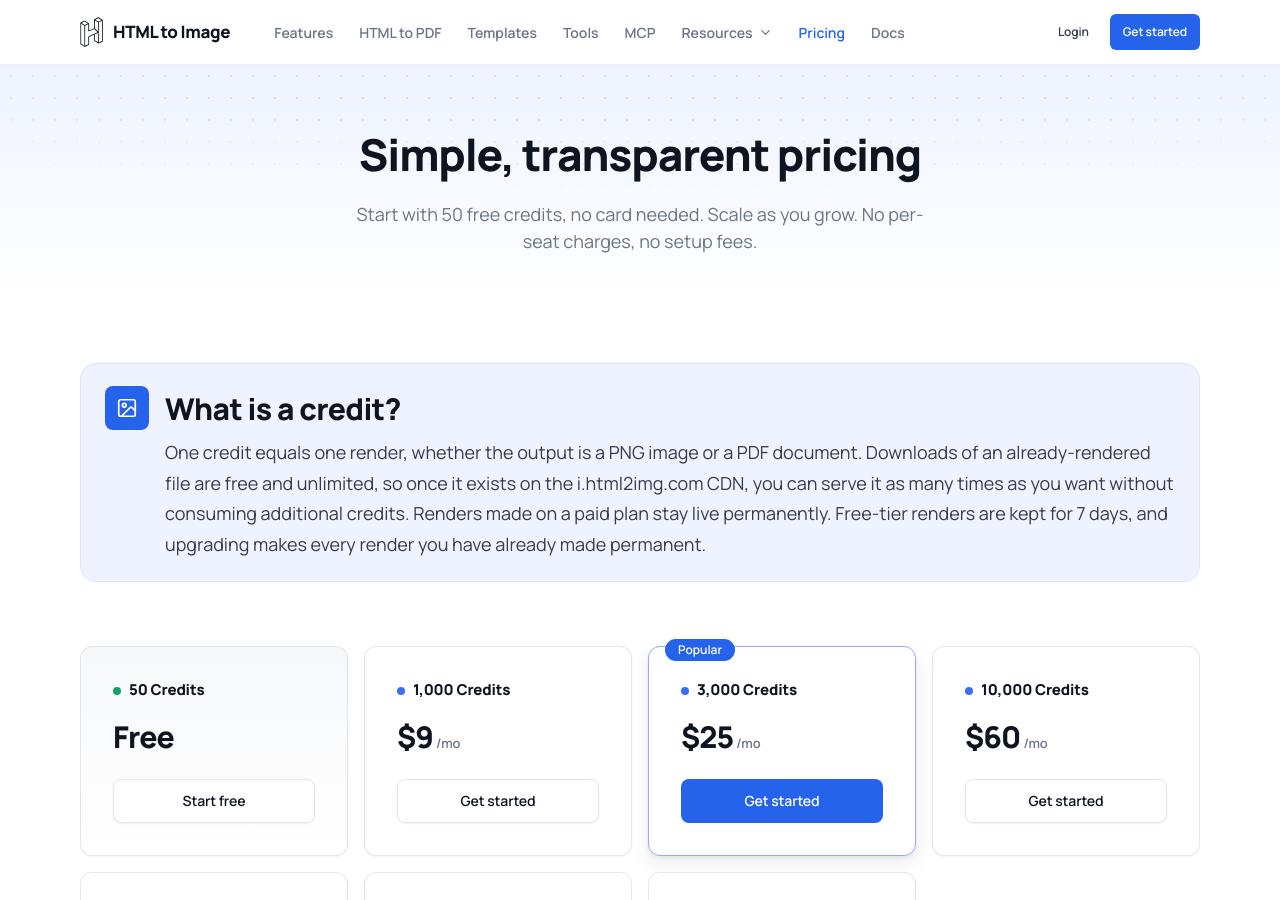
 A pricing page before a change
A pricing table captured with its layout and background colours intact. A dated PDF is a far better record of what was published than a folder of screenshots.
Use it from your code
The URL to PDF Converter runs on the HTML to Image API, and so can you. Every snippet below is a
complete request: swap YOUR_API_KEY for a key from your dashboard and it runs
as-is. The response carries a url for the finished file.
curl -X POST https://app.html2img.com/api/screenshot \
  -H "X-API-Key: YOUR_API_KEY" \
  -H "Content-Type: application/json" \
-d '{"url":"https://example.com/terms","format":"pdf"}'<?php
$payload = [
'url' => 'https://example.com/terms',
'format' => 'pdf',
];
$ch = curl_init('https://app.html2img.com/api/screenshot');
curl_setopt_array($ch, [
CURLOPT_POST => true,
CURLOPT_RETURNTRANSFER => true,
CURLOPT_HTTPHEADER => [
'X-API-Key: YOUR_API_KEY',
'Content-Type: application/json',
],
CURLOPT_POSTFIELDS => json_encode($payload),
]);
$response = json_decode(curl_exec($ch), true);
curl_close($ch);
echo $response['url'];const response = await fetch('https://app.html2img.com/api/screenshot', {
method: 'POST',
headers: {
'X-API-Key': 'YOUR_API_KEY',
'Content-Type': 'application/json',
},
body: JSON.stringify({
"url": "https://example.com/terms",
"format": "pdf"
}),
});
const { url } = await response.json();
console.log(url);import requests
response = requests.post(
'https://app.html2img.com/api/screenshot',
headers={'X-API-Key': 'YOUR_API_KEY'},
json={
'url': 'https://example.com/terms',
'format': 'pdf',
},
)
print(response.json()['url'])using System;
using System.Collections.Generic;
using System.Net.Http;
using System.Net.Http.Json;
var client = new HttpClient();
client.DefaultRequestHeaders.Add("X-API-Key", "YOUR_API_KEY");
var payload = new
{
url = "https://example.com/terms",
format = "pdf",
};
var response = await client.PostAsJsonAsync("https://app.html2img.com/api/screenshot", payload);
var result = await response.Content.ReadFromJsonAsync<Dictionary<string, string>>();
Console.WriteLine(result["url"]);require 'net/http'
require 'json'
uri = URI('https://app.html2img.com/api/screenshot')
request = Net::HTTP::Post.new(uri)
request['X-API-Key'] = 'YOUR_API_KEY'
request['Content-Type'] = 'application/json'
request.body = {
url: "https://example.com/terms",
format: "pdf",
}.to_json
response = Net::HTTP.start(uri.hostname, uri.port, use_ssl: true) do |http|
http.request(request)
end
puts JSON.parse(response.body)['url']Tips
Use the exact URL you want captured
Redirects, tracking parameters, and mobile subdomains can land the renderer somewhere other than the page you meant. Paste the final, canonical address from the browser bar and the capture matches what you were looking at.
Remember the visit is anonymous
The renderer arrives with no cookies and no session, so a page behind a login converts as its logged-out state, usually a sign-in form. The same applies to paywalled articles and region-gated content: the PDF shows what an anonymous visitor sees.
Expect cookie banners and popups
A first-time anonymous visit triggers the same consent banners a new reader gets, and they are captured in the PDF. When calling the API you can pass a css parameter that hides the selectors you do not want in the document, which is the cleanest way to remove page furniture.
Give slow pages time to finish
The converter waits for the page to render before capturing, but apps that load data in stages can still be caught mid-paint. The API accepts ms_delay and wait_for_selector parameters that hold the capture until a fixed delay has passed or a chosen element exists.
Record when you captured it
The PDF does not stamp a capture date onto the page. If the file is an archive record, store the captured-at time and the source URL alongside it, or put both in the filename, so the snapshot can be placed in time later.
Frequently asked questions
How is this different from the browser's Save as PDF?
The browser print pipeline applies @media print styles, adds its own headers and footers, and varies by browser and operating system. This converter renders the page server-side with its normal screen styles, so the same URL produces the same document for everyone, and the conversion can be scripted through the API.
Does JavaScript on the page run?
Yes. The page loads in a real browser engine, so client-rendered frameworks, charts, and embedded widgets execute the way they do for a normal visitor. Content that only appears after user interaction, such as a tab that must be clicked, is not captured.
Can I convert a page that requires a login?
No. The renderer visits anonymously, so a URL behind authentication converts as its logged-out state, which is usually a sign-in page. For your own application the better pattern is to render the underlying markup directly through the HTML endpoint, which needs no session at all.
What page size does the PDF use?
A4 portrait, paginated automatically across as many pages as the content needs. Other page sizes and landscape orientation are not available yet.
Is the text in the PDF selectable?
Yes, wherever the source page uses real text. The PDF keeps a vector text layer with the page fonts embedded, so text can be selected, copied, and searched. Text baked into images on the source page stays an image.
How do I automate URL to PDF conversion?
Post the URL to the screenshot endpoint of the HTML to Image API with format set to pdf. The response returns a hosted URL for the file, and passing a webhook_url runs the conversion async with the result delivered by callback. Each conversion costs one credit.
How much does it cost?
The converter on this page is free, limited to three renders an hour and ten a day per visitor. A free account includes 25 renders a month with full API access, and paid plans cover archive-scale volumes.
Can I capture just part of the page?
Not in PDF mode: the selector and fullpage parameters apply to image output only, and a PDF always captures the whole document. To keep unwanted elements out of the file, hide them with the API's css parameter instead.
Related templates
Invoice Image template
Render full invoices as PNG images or A4 PDFs for emails, dashboards, and exports
Receipt Image template
Compact order receipts as PNGs for confirmation emails or PDFs for expense filing
Project Showcase template
"We shipped X" hero cards for changelogs and launch announcements
Related guides
How HTML to PDF Conversion Actually Works: Rendering Engines, Text Objects and Fonts
How HTML to PDF conversion works inside the engine: the render pipeline, what a text layer really is, font subsetting, the raster fallback, and three commands to check any PDF.
The Complete Guide to Generating PDFs from HTML in 2026
Generate PDFs from HTML: every route compared in depth, from dompdf and wkhtmltopdf to headless Chrome and hosted APIs, with honest trade-offs and live examples.
More tools
Twitter Card Generator
Generate 1200 by 628 X share cards from a title, description, and brand artwork.
Website Screenshot Tool
Enter any public URL and get back a PNG screenshot, viewport or full page.
YouTube Thumbnail Generator
Build a 1280 by 720 YouTube thumbnail from a title, a face, and a brand colour.