The HTML to PDF Converter takes an HTML document, with its CSS in a style tag, and returns a finished PDF. The output is a real vector document rather than a picture of one: text can be selected, searched, and copied in any PDF viewer, webfonts are embedded in the file, and the content is laid out on A4 portrait pages that paginate automatically when the document runs long. Backgrounds, gradients, and borders all survive the conversion, so the PDF looks the way the same markup would look in a browser.
Most HTML to PDF options sit at one of two extremes: a browser print dialog that produces different output on every machine, or a document library that wants a server, a queue, and a maintenance plan. This converter runs server-side in a real browser engine and hands back a hosted URL, so the preview you check is exactly the file every recipient gets. When converting one document at a time stops being enough, the same renderer is available through the HTML to Image API: send your markup to the HTML endpoint with format set to pdf and wire the returned URL into an invoice email, a payment webhook, or a nightly reporting job.
How it works
Paste a full HTML document
Drop a complete document into the editor, with your CSS inside a style tag in the head. The sample invoice that loads with the converter is a reasonable skeleton: replace the content, keep the structure.
Convert to PDF
The renderer loads your markup in a server-side browser engine, applies your styles, and lays the result out on A4 portrait pages. Long content flows across as many pages as it needs; nothing is scaled down to force a fit.
Check the preview
The preview pane shows the finished PDF, not an approximation of it. Look at where the page breaks fall and confirm the fonts and colours came through, then adjust the markup and convert again if something sits wrong.
Download or copy the hosted URL
The file lives at a stable URL on the CDN and is served as application/pdf, so you can download it, attach it, or link to it directly. Converting again after an edit produces a new file at a new URL.
When to use it
Invoices that match the web view
The invoice a customer sees in their browser and the PDF attached to their email should be the same document. Reuse one set of markup and styles for both, and the two outputs stay in step because nobody maintains a second layout in a design tool.
Receipts generated from payment webhooks
Fire a conversion from the payment-succeeded webhook, store the returned URL against the order, and the receipt exists before the confirmation email goes out. Because the text layer is real, the amount and order number stay searchable in whatever document system the file lands in.
Multi-page reports without manual layout
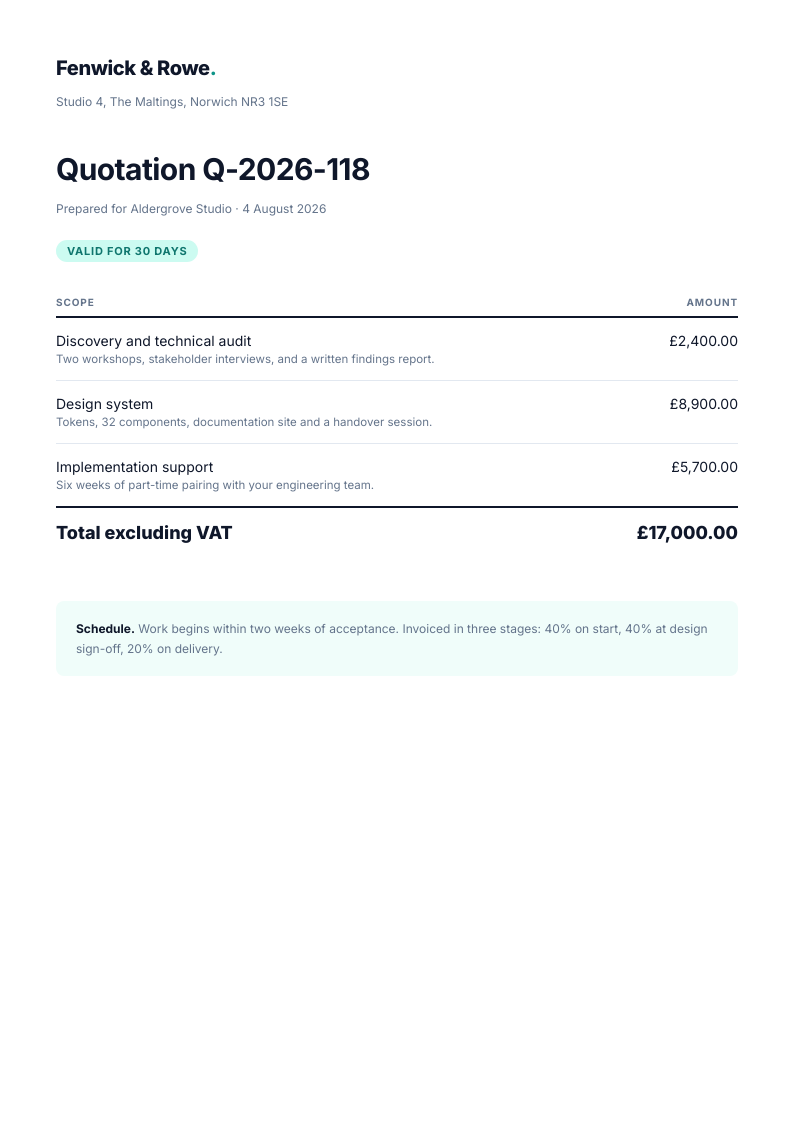
A monthly report written as one long HTML page paginates on its own, so a fifteen-section document becomes a clean set of A4 pages with no per-page fiddling. Tables, CSS charts, and SVG stay vector, which keeps them sharp on screen and in print.
Certificates issued at scale
Render one certificate per learner by looping over the enrolment list and swapping the recipient name into the markup. Names stay selectable text rather than pixels, which matters for screen readers and for anyone copying the credential into a records system.
Quotes, contracts, and terms
Documents that get signed or filed need to read the same way for every party, years later. A server-rendered PDF freezes the content and layout at generation time, and the embedded fonts mean it displays identically on machines that have never installed your brand typeface.
Examples
 Open PDF
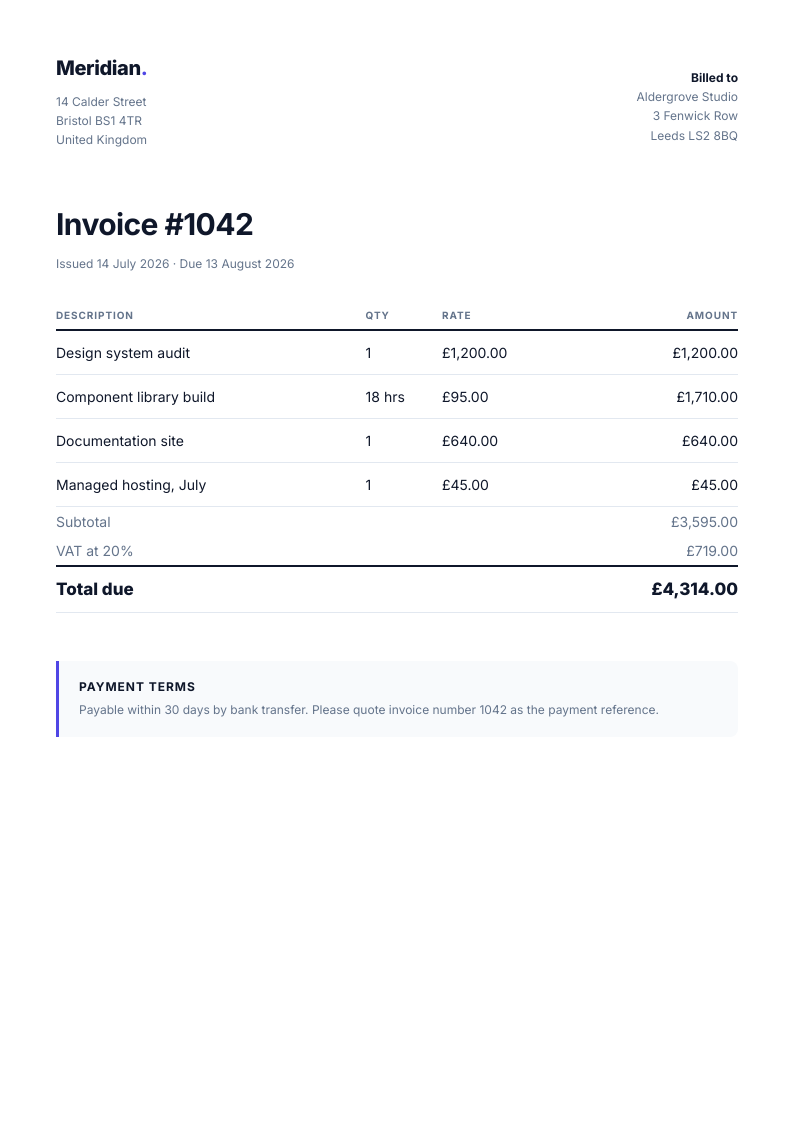
 Invoice with a line-item table
A branded header, a line-item table with totals, and payment terms at the foot, on one A4 page. The amounts stay selectable text, so this file is searchable in whatever system it is filed in.
 Open PDF
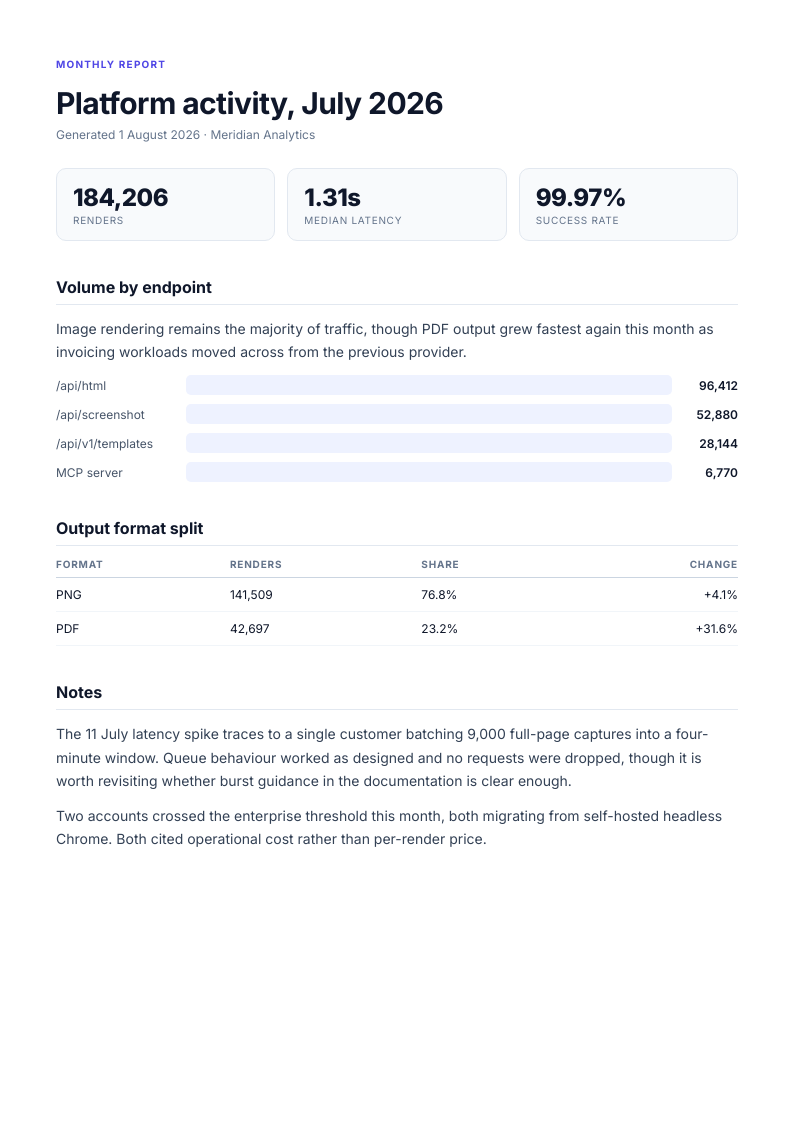
 Multi-page activity report
A long report with section headings, a data table and CSS bar charts, flowing across three A4 pages. The markup declares nothing about pagination; the renderer breaks the pages itself.
 Open PDF
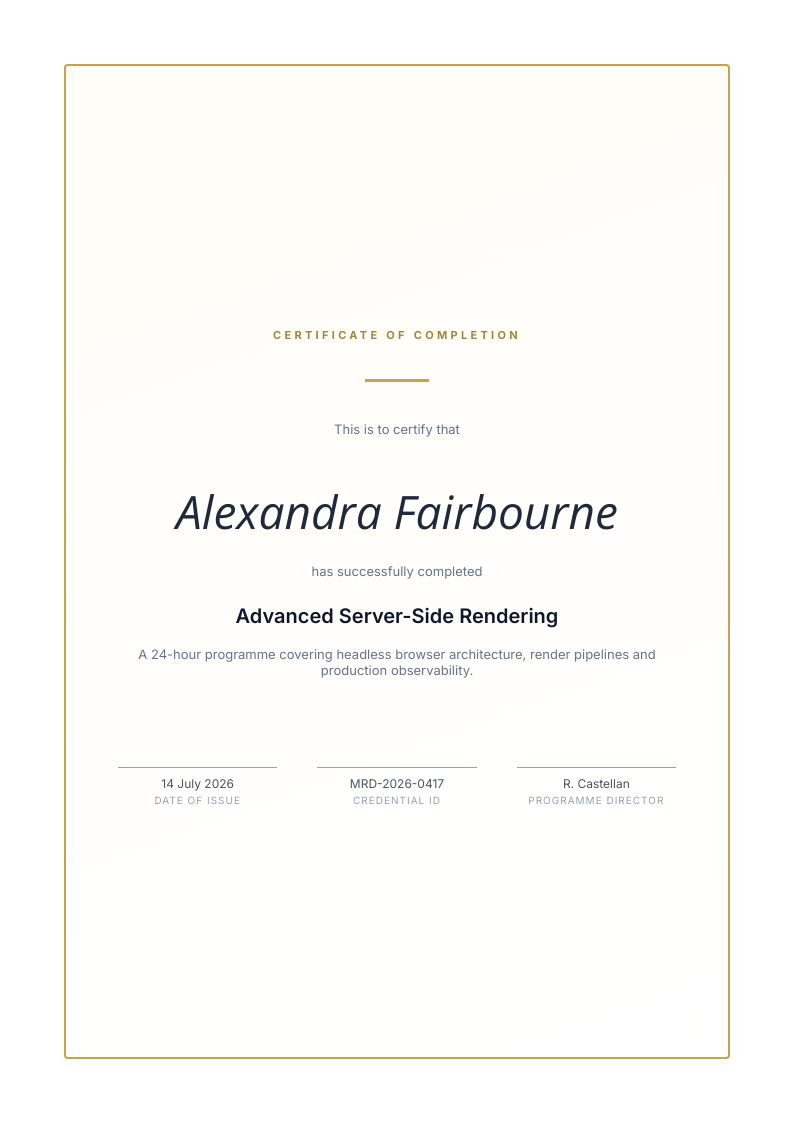
 Certificate of completion
A centred certificate with a decorative border and a script typeface for the recipient name, converted from the same markup a browser would display.
Use it from your code
The HTML to PDF Converter runs on the HTML to Image API, and so can you. Every snippet below is a
complete request: swap YOUR_API_KEY for a key from your dashboard and it runs
as-is. The response carries a url for the finished file.
curl -X POST https://app.html2img.com/api/html \
  -H "X-API-Key: YOUR_API_KEY" \
  -H "Content-Type: application/json" \
-d '{"html":"<div class=\"card\"><h1>Invoice #1042</h1><p>Due within 30 days.</p></div>","css":".card { font-family: system-ui, sans-serif; padding: 48px; }\nh1 { color: #4f46e5; margin: 0 0 8px; }","format":"pdf"}'<?php
$payload = [
'html' => '<div class="card"><h1>Invoice #1042</h1><p>Due within 30 days.</p></div>',
'css' => '.card { font-family: system-ui, sans-serif; padding: 48px; }\nh1 { color: #4f46e5; margin: 0 0 8px; }',
'format' => 'pdf',
];
$ch = curl_init('https://app.html2img.com/api/html');
curl_setopt_array($ch, [
CURLOPT_POST => true,
CURLOPT_RETURNTRANSFER => true,
CURLOPT_HTTPHEADER => [
'X-API-Key: YOUR_API_KEY',
'Content-Type: application/json',
],
CURLOPT_POSTFIELDS => json_encode($payload),
]);
$response = json_decode(curl_exec($ch), true);
curl_close($ch);
echo $response['url'];const response = await fetch('https://app.html2img.com/api/html', {
method: 'POST',
headers: {
'X-API-Key': 'YOUR_API_KEY',
'Content-Type': 'application/json',
},
body: JSON.stringify({
"html": "<div class=\"card\"><h1>Invoice #1042</h1><p>Due within 30 days.</p></div>",
"css": ".card { font-family: system-ui, sans-serif; padding: 48px; }\nh1 { color: #4f46e5; margin: 0 0 8px; }",
"format": "pdf"
}),
});
const { url } = await response.json();
console.log(url);import requests
response = requests.post(
'https://app.html2img.com/api/html',
headers={'X-API-Key': 'YOUR_API_KEY'},
json={
'html': '<div class="card"><h1>Invoice #1042</h1><p>Due within 30 days.</p></div>',
'css': '.card { font-family: system-ui, sans-serif; padding: 48px; }\nh1 { color: #4f46e5; margin: 0 0 8px; }',
'format': 'pdf',
},
)
print(response.json()['url'])using System;
using System.Collections.Generic;
using System.Net.Http;
using System.Net.Http.Json;
var client = new HttpClient();
client.DefaultRequestHeaders.Add("X-API-Key", "YOUR_API_KEY");
var payload = new
{
html = "<div class=\"card\"><h1>Invoice #1042</h1><p>Due within 30 days.</p></div>",
css = ".card { font-family: system-ui, sans-serif; padding: 48px; }\nh1 { color: #4f46e5; margin: 0 0 8px; }",
format = "pdf",
};
var response = await client.PostAsJsonAsync("https://app.html2img.com/api/html", payload);
var result = await response.Content.ReadFromJsonAsync<Dictionary<string, string>>();
Console.WriteLine(result["url"]);require 'net/http'
require 'json'
uri = URI('https://app.html2img.com/api/html')
request = Net::HTTP::Post.new(uri)
request['X-API-Key'] = 'YOUR_API_KEY'
request['Content-Type'] = 'application/json'
request.body = {
html: "<div class=\"card\"><h1>Invoice #1042</h1><p>Due within 30 days.</p></div>",
css: ".card { font-family: system-ui, sans-serif; padding: 48px; }\nh1 { color: #4f46e5; margin: 0 0 8px; }",
format: "pdf",
}.to_json
response = Net::HTTP.start(uri.hostname, uri.port, use_ssl: true) do |http|
http.request(request)
end
puts JSON.parse(response.body)['url']Tips
Design for a document, not a viewport
PDF pages are A4 portrait and content reflows to the page width, so the width, height, and dpi options from image rendering are ignored. Drop fixed pixel widths and viewport units in favour of flowing blocks with sensible margins, the way you would style a long article.
Inline images as data URIs
The renderer does not wait for remote images, so an img tag pointing at a hosted file can come through blank. Encode images as base64 data URIs directly in the src attribute and the document becomes self-contained, which also means it converts the same way every time.
Put everything in your screen styles
Print stylesheets are not applied: the PDF is rendered with your normal screen CSS so it matches what a browser shows. If the document needs particular spacing, hidden elements, or page margins, express that in the standard styles rather than in an @media print block.
Keep text as text
Rasterising a heading into an image costs selectability, searchability, and file size all at once. Real text stays vector, embeds its webfont, and survives any zoom level, so reserve images for genuinely graphical content like logos and photographs.
Check where the pages break
Automatic pagination is right most of the time, but a table row or a card can land across a page boundary. The preview shows exactly where each page ends; when a block splits awkwardly, adjusting its margins or its position in the source usually settles it.
Frequently asked questions
Is the text in the PDF selectable?
Yes. The output is a vector PDF with a real text layer, so anything written in the markup can be selected, copied, and searched in any viewer. Only genuine raster content, such as img elements and canvases, is embedded as pixels.
What page size does the PDF use?
A4 portrait, with content paginating across as many pages as it needs automatically. Other page sizes and orientations are not available yet, so a project that must produce US Letter or landscape output today is better served by a dedicated PDF layout tool.
Why are width, height, and dpi ignored?
Those parameters size PNG output, and a PDF has no bitmap to size: pages are A4 and the content is vector, sharp at every zoom level. Design the markup to flow to the page width rather than to fixed pixel dimensions.
Do my @media print styles apply?
No. The document is rendered with your normal screen CSS, so the PDF looks like the same markup would in a browser window. Put everything the document needs into your standard styles, including anything you would usually reserve for print.
Can I use webfonts?
Yes. Google Fonts and self-hosted @font-face fonts load during the render and are embedded in the PDF, so the document shows the intended typeface on machines that do not have the font installed.
How do I convert HTML to PDF from code?
Send your markup to the HTML endpoint of the HTML to Image API with format set to pdf. The response contains a hosted URL for the finished file, and a webhook_url parameter switches the call to async for long documents. Each conversion costs one credit, the same as an image render.
How much does it cost?
The converter on this page is free: three renders an hour and ten a day per visitor, with no account needed. A free account raises that to 25 renders a month and adds API access, and paid plans carry on from there for invoice-volume workloads.
How is this different from printing to PDF in my browser?
A browser print dialog applies print stylesheets, inserts its own headers and margins, and produces different results across machines and browsers. This converter renders server-side, so the same markup produces the same document for everyone, and the conversion can be automated through the API.
Related templates
Invoice Image template
Render full invoices as PNG images or A4 PDFs for emails, dashboards, and exports
Receipt Image template
Compact order receipts as PNGs for confirmation emails or PDFs for expense filing
Certificate of Completion template
Print-ready certificates for course completion, training, and recognition
Related guides
How HTML to PDF Conversion Actually Works: Rendering Engines, Text Objects and Fonts
How HTML to PDF conversion works inside the engine: the render pipeline, what a text layer really is, font subsetting, the raster fallback, and three commands to check any PDF.
Convert HTML to PDF in Node.js With One API Call
Convert HTML to PDF in Node.js with one API call. Send your markup with format: pdf and get an A4 vector PDF back, fonts embedded and no Chrome to run.
Can I use it in a PDF? CSS support across HTML to PDF engines
HTML to PDF CSS support compared: flexbox, grid, @page margin boxes, page numbers, target-counter and more across Chrome, wkhtmltopdf, WeasyPrint and Prince.
The Complete Guide to Generating PDFs from HTML in 2026
Generate PDFs from HTML: every route compared in depth, from dompdf and wkhtmltopdf to headless Chrome and hosted APIs, with honest trade-offs and live examples.
More tools
HTML to Image Converter
Paste an HTML document and get back a PNG rendered in real Chrome.
Invoice Image Generator
Render an invoice as a PNG to embed in email bodies without forcing a PDF attachment.
Markdown to Image Converter
Paste Markdown and get back a styled PNG, headings, tables, code blocks and all.