The Code Screenshot Generator turns a snippet of source code into a syntax-highlighted PNG with optional window chrome, padding, and a background gradient. It supports any language that Prism or highlight.js recognises, which covers everything from JavaScript and Python through to Rust, Elixir, and SQL. The output is a clean image suitable for blog post bodies, social posts, documentation, and slide decks.
The category has been dominated by carbon.now.sh and ray.so for years, both of which are excellent in-browser tools but have no API. This generator runs server-side and can be called from a build pipeline, a publishing hook, or a CMS workflow, which is what most engineering content teams need once they move past hand-screenshotting every snippet. Pass the code, the language, and the styling options as JSON, and the response is a hosted PNG URL you can paste into a post body or attach to a tweet.
How it works
Paste the code and pick the language
Drop the snippet into the code field and select the language from the dropdown. The list covers every language Prism supports natively, plus a few additions like Elixir, Crystal, and Nix that get added through plugins.
Choose a theme
Pick from the built-in themes (One Dark, Dracula, Solarized Light, GitHub, Night Owl, and a handful of others) or supply a custom theme by passing a CSS variables block. The themes match their VS Code counterparts closely enough that they read consistently between editor and screenshot.
Configure padding, chrome, and background
Toggle the macOS-style window chrome on or off, set the padding around the code block, and pick a solid colour or gradient background. The defaults produce a clean screenshot that reads well on both light and dark social feeds.
Download or copy the URL
Download the PNG for use in slides or design tools, or copy the hosted CDN URL into a blog post markdown image, an email, or a social post. The URL stays valid for as long as the underlying snippet does not change.
When to use it
Code-rich blog posts that need consistent screenshots
Technical blogs that publish dozens of code snippets per post benefit from a single consistent rendering style across the site. Render each snippet through the API at publish time, store the URLs alongside the markdown, and the post reads as one coherent piece rather than a patchwork of differently themed screenshots.
X threads about pull requests and shipped code
Developer relations teams that share code on X benefit from screenshots that read in the timeline rather than raw GitHub embed previews. Render the snippet, attach the PNG to the post, and the code is legible at thumbnail size without anyone clicking through to the repo.
Documentation site code blocks with social previews
Docs sites that want their code snippets to appear in OG cards and social previews can render a screenshot of the canonical example and use it as the og:image for that page. The share card then shows the actual code rather than a generic docs logo.
Conference slides and talk decks
Speakers who present a lot of code benefit from screenshots that match across slides without manually re-styling each one. Render every snippet through the API with the same theme and padding, drop them into the deck, and the talk reads as one consistent visual treatment.
Newsletter editions with embedded snippets
Developer newsletters delivered as email cannot rely on code highlighting working in every client. Render each snippet as a PNG, embed the image, and the code displays consistently in Gmail, Outlook, Apple Mail, and the dozen smaller clients that handle inline CSS badly.
Examples
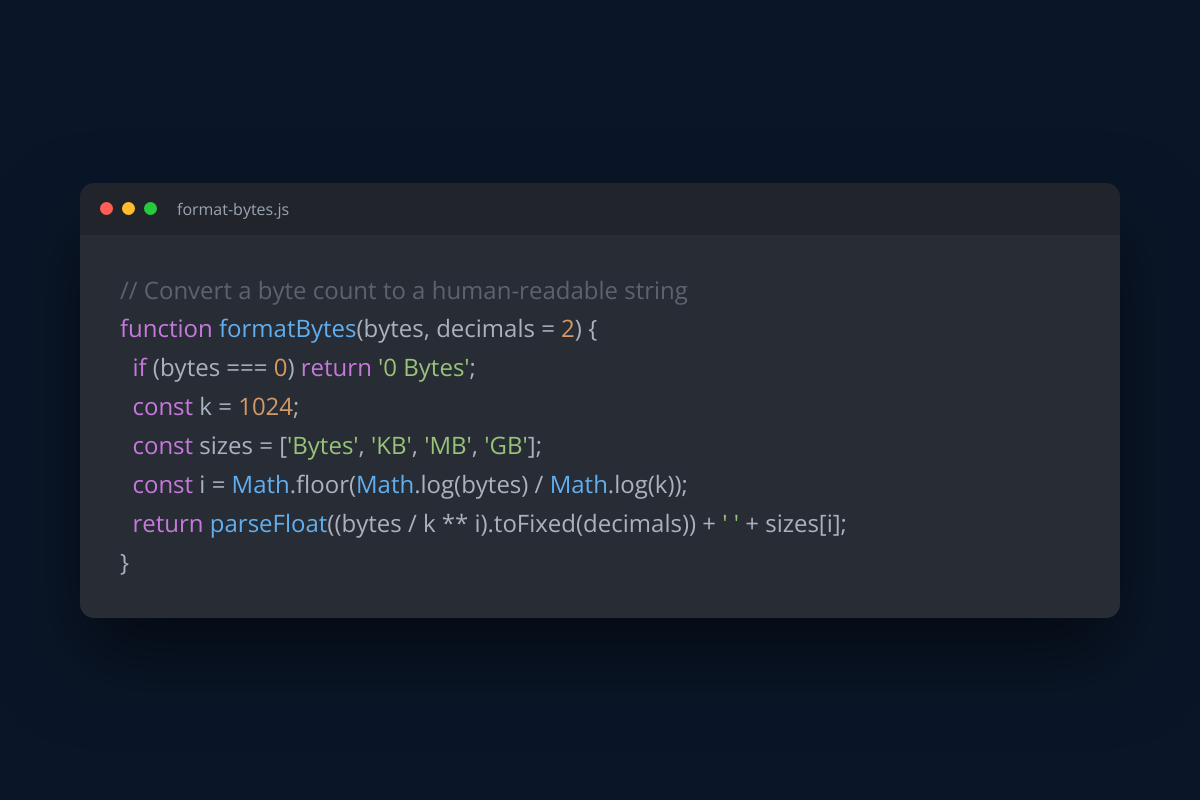
One Dark with macOS window chrome
The defaults for most engineering blogs. Dark theme, traffic-light controls in the top-left, modest padding, and a deep navy background.
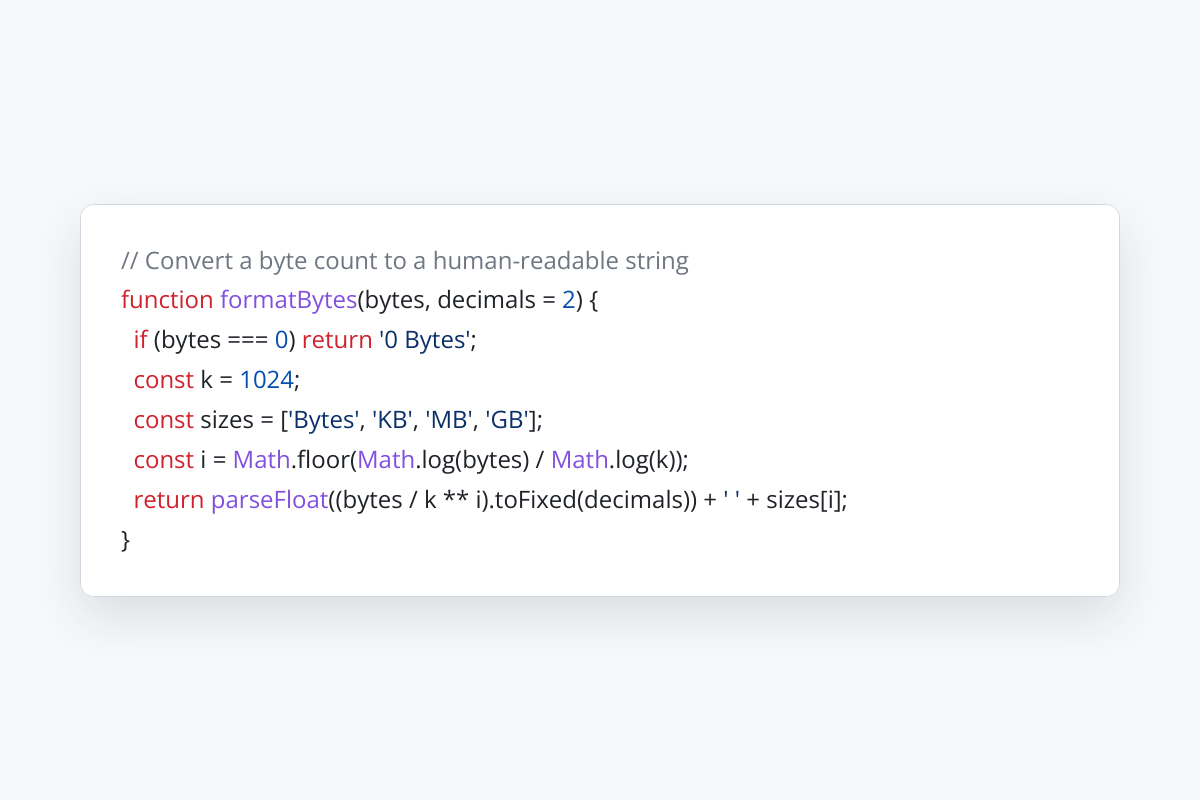
GitHub Light theme without chrome
Stripped-down output for embedding inside docs pages or technical PDFs where the surrounding page already provides context.
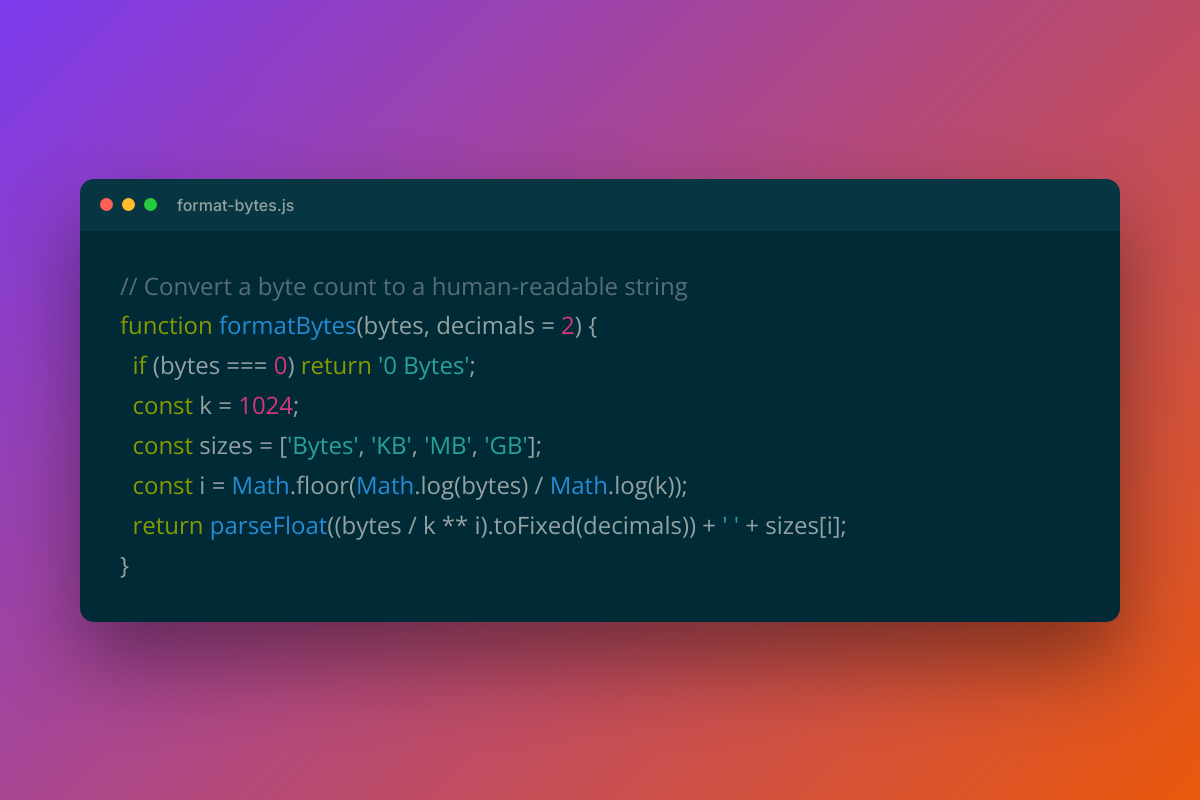
Solarized Dark with gradient background
Higher-contrast option for social posts. Solarized Dark code on a purple-to-orange gradient, well-suited to talk announcements and conference promotion.
Use it from your code
The Code Screenshot Generator runs on the HTML to Image API, and so can you. Every snippet below is a
complete request: swap YOUR_API_KEY for a key from your dashboard and it runs
as-is. The response carries a url for the finished file.
curl -X POST https://app.html2img.com/api/v1/templates/code-screenshot \
  -H "X-API-Key: YOUR_API_KEY" \
  -H "Content-Type: application/json" \
-d '{"code":"export async function fetchUser(id: string) {\n const res = await fetch(`/api/users/${id}`);\n\n if (!res.ok) {\n throw new Error(`Failed to load user ${id}`);\n }\n\n return res.json() as Promise<User>;\n}","language":"typescript","title":"src/lib/users.ts","theme":"atom-one-dark","background":"linear-gradient(135deg, #6366F1 0%, #8B5CF6 50%, #EC4899 100%)","padding":72,"show_window_chrome":"true","show_line_numbers":"false"}'<?php
$payload = [
'code' => 'export async function fetchUser(id: string) {\n const res = await fetch(`/api/users/${id}`);\n\n if (!res.ok) {\n throw new Error(`Failed to load user ${id}`);\n }\n\n return res.json() as Promise<User>;\n}',
'language' => 'typescript',
'title' => 'src/lib/users.ts',
'theme' => 'atom-one-dark',
'background' => 'linear-gradient(135deg, #6366F1 0%, #8B5CF6 50%, #EC4899 100%)',
'padding' => 72,
'show_window_chrome' => 'true',
'show_line_numbers' => 'false',
];
$ch = curl_init('https://app.html2img.com/api/v1/templates/code-screenshot');
curl_setopt_array($ch, [
CURLOPT_POST => true,
CURLOPT_RETURNTRANSFER => true,
CURLOPT_HTTPHEADER => [
'X-API-Key: YOUR_API_KEY',
'Content-Type: application/json',
],
CURLOPT_POSTFIELDS => json_encode($payload),
]);
$response = json_decode(curl_exec($ch), true);
curl_close($ch);
echo $response['url'];const response = await fetch('https://app.html2img.com/api/v1/templates/code-screenshot', {
method: 'POST',
headers: {
'X-API-Key': 'YOUR_API_KEY',
'Content-Type': 'application/json',
},
body: JSON.stringify({
"code": "export async function fetchUser(id: string) {\n const res = await fetch(`/api/users/${id}`);\n\n if (!res.ok) {\n throw new Error(`Failed to load user ${id}`);\n }\n\n return res.json() as Promise<User>;\n}",
"language": "typescript",
"title": "src/lib/users.ts",
"theme": "atom-one-dark",
"background": "linear-gradient(135deg, #6366F1 0%, #8B5CF6 50%, #EC4899 100%)",
"padding": 72,
"show_window_chrome": "true",
"show_line_numbers": "false"
}),
});
const { url } = await response.json();
console.log(url);import requests
response = requests.post(
'https://app.html2img.com/api/v1/templates/code-screenshot',
headers={'X-API-Key': 'YOUR_API_KEY'},
json={
'code': 'export async function fetchUser(id: string) {\n const res = await fetch(`/api/users/${id}`);\n\n if (!res.ok) {\n throw new Error(`Failed to load user ${id}`);\n }\n\n return res.json() as Promise<User>;\n}',
'language': 'typescript',
'title': 'src/lib/users.ts',
'theme': 'atom-one-dark',
'background': 'linear-gradient(135deg, #6366F1 0%, #8B5CF6 50%, #EC4899 100%)',
'padding': 72,
'show_window_chrome': 'true',
'show_line_numbers': 'false',
},
)
print(response.json()['url'])using System;
using System.Collections.Generic;
using System.Net.Http;
using System.Net.Http.Json;
var client = new HttpClient();
client.DefaultRequestHeaders.Add("X-API-Key", "YOUR_API_KEY");
var payload = new
{
code = "export async function fetchUser(id: string) {\n const res = await fetch(`/api/users/${id}`);\n\n if (!res.ok) {\n throw new Error(`Failed to load user ${id}`);\n }\n\n return res.json() as Promise<User>;\n}",
language = "typescript",
title = "src/lib/users.ts",
theme = "atom-one-dark",
background = "linear-gradient(135deg, #6366F1 0%, #8B5CF6 50%, #EC4899 100%)",
padding = 72,
show_window_chrome = "true",
show_line_numbers = "false",
};
var response = await client.PostAsJsonAsync("https://app.html2img.com/api/v1/templates/code-screenshot", payload);
var result = await response.Content.ReadFromJsonAsync<Dictionary<string, string>>();
Console.WriteLine(result["url"]);require 'net/http'
require 'json'
uri = URI('https://app.html2img.com/api/v1/templates/code-screenshot')
request = Net::HTTP::Post.new(uri)
request['X-API-Key'] = 'YOUR_API_KEY'
request['Content-Type'] = 'application/json'
request.body = {
code: "export async function fetchUser(id: string) {\n const res = await fetch(`/api/users/${id}`);\n\n if (!res.ok) {\n throw new Error(`Failed to load user ${id}`);\n }\n\n return res.json() as Promise<User>;\n}",
language: "typescript",
title: "src/lib/users.ts",
theme: "atom-one-dark",
background: "linear-gradient(135deg, #6366F1 0%, #8B5CF6 50%, #EC4899 100%)",
padding: 72,
show_window_chrome: "true",
show_line_numbers: "false",
}.to_json
response = Net::HTTP.start(uri.hostname, uri.port, use_ssl: true) do |http|
http.request(request)
end
puts JSON.parse(response.body)['url']Tips
Trim the snippet before rendering
Long snippets shrink below a readable point size when the renderer scales them to fit. Trim to twenty lines or fewer where possible, and break a longer example into a sequence of smaller screenshots rather than one tall one that nobody can read.
Pick a theme that survives compression
Subtle low-contrast themes lose detail when X or LinkedIn re-compress the image for the feed. Higher-contrast themes (One Dark, Dracula, GitHub) survive the round trip better than low-contrast ones (Solarized Light, GitHub Light), so favour them for content destined for social.
Use a monospaced fallback that handles ligatures
JetBrains Mono and Fira Code render ligatures (the connected arrow in =>, for example) that some readers find clearer and some find distracting. Pick a side and stick with it across all your screenshots, since switching mid-thread is more jarring than committing to either default.
Render at 2x for retina-friendly output
Default-DPI renders look soft on retina laptops and modern phones. The 2x DPI option doubles the pixel dimensions without changing the rendered point size, which produces crisp output everywhere at the cost of a roughly 4x larger file.
Cache aggressively at the CDN
The hosted CDN URL for a rendered snippet does not change unless the underlying code does, so set long cache headers on any wrapping CDN or front-of-app cache. Re-render only when the code itself moves, and update the URL with a cache-busting query string at that point.
Frequently asked questions
What languages are supported?
Every language Prism supports natively, which is roughly three hundred at the time of writing. The common ones (JavaScript, TypeScript, Python, Ruby, Go, Rust, PHP, Java, Kotlin, Swift, C, C++, C#, SQL, HTML, CSS, Bash, YAML, JSON, Markdown) are all covered, along with longer-tail options like Elixir, Crystal, Nix, Zig, and Haskell.
Can I supply a custom theme?
Yes, pass a CSS variables block as part of the JSON payload and the renderer applies it on top of the base theme. The variable names follow the Prism token naming convention, so existing Prism themes work directly with minimal adjustment.
How does this compare to Carbon and Ray.so?
Carbon and Ray.so are excellent in-browser tools but neither exposes an API. This generator runs server-side and can be called from a build pipeline or CMS, which matters once you need to render screenshots in bulk or as part of a publishing workflow rather than one at a time by hand.
What output format do I get?
The default output is a PNG with the transparent or solid background you configured. JPG is available for cases where file size matters more than perfect edges, and WEBP is available for use on sites where modern browser support is acceptable. PNG remains the default because it survives every social compression pipeline cleanly.
Can I include line numbers?
Yes, line numbers can be toggled on with an optional starting offset. The renderer uses a muted token colour for the numbers so they sit visually behind the code rather than competing with it, and they wrap correctly when the snippet contains very long lines.
Does this work for diffs?
Yes, set the language to diff and the renderer applies the standard red and green token colouring to removed and added lines respectively. The same screenshot reads correctly in both light and dark themes because the diff colours are theme-aware.
How large can the snippet be?
There is no hard line cap, but readable output starts to break down past roughly forty lines or two hundred characters per line. For longer examples, render multiple screenshots rather than one tall image, since the reader can scroll through a sequence more comfortably than they can read tiny text.
Related templates
Related guides
How to Convert Markdown to an Image (Without Screenshotting Your Editor)
Convert Markdown to an image without screenshots: parse GFM to HTML, add a document stylesheet and render a content-sized PNG in one API call.
How to create a code screenshot for social media
Code screenshots for social media, done properly: set the theme, background and line numbers with one API call, or automate the lot in your build.
More tools
Certificate Generator
Generate course completion certificates with recipient name, date, and signature.
GitHub Social Preview Generator
Build a 1280 by 640 repository preview image for the GitHub social preview field.
HTML to Image Converter
Paste an HTML document and get back a PNG rendered in real Chrome.