How to Screenshot a Single Element From a Live URL
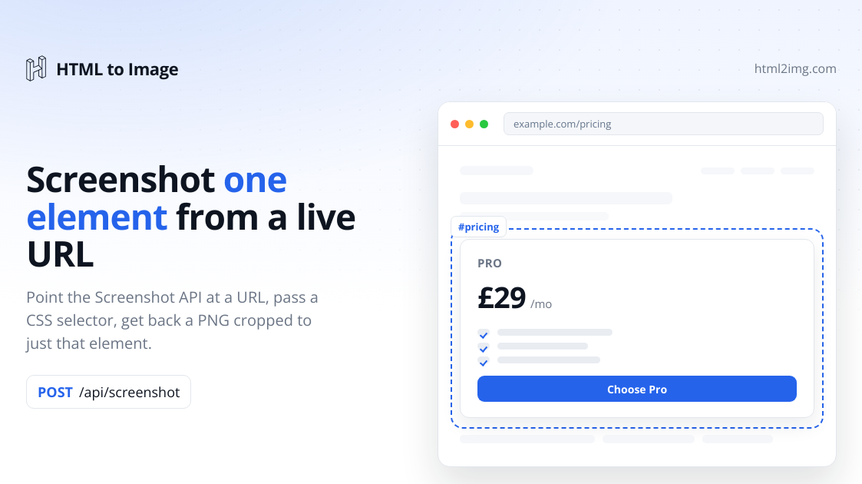
You need one part of a page as an image, not the whole thing. The pricing table for a comparison post, a single chart from a dashboard, a testimonial card, the hero from a landing page. The usual fix is to screenshot the full page and crop it in an image editor, which breaks the moment the layout shifts or someone ships a redesign.
There is a cleaner way. Point the Screenshot endpoint at a URL, pass a CSS selector and get back a PNG cropped to exactly that element.
Crop to an element with selector
The Screenshot endpoint loads any public URL in real Chrome and captures it. Add a selector and it captures only the element that selector matches, cropped to its bounding box:
curl -X POST https://app.html2img.com/api/screenshot \
  -H "Content-Type: application/json" \
  -H "X-API-Key: $HTML2IMG_API_KEY" \
  -d '{
    "url": "https://example.com/pricing",
    "selector": "#pricing-table"
  }'
Running this in production? Get an API key with 50 free credits, no card needed.
The response hands you the finished image on the CDN:
{
  "success": true,
  "id": "d15c9434-ff5f-4303-8e07-a076498565b5",
  "credits_remaining": 99,
  "url": "https://i.html2img.com/image-1783187360848-822778.png"
}
That url is a real PNG. Fetch it, cache it, drop it into an email or a page, whatever you need. No browser to install, no Chrome to keep patched, no Lambda layer to babysit. If you have reached for Puppeteer on a server before, the Puppeteer on Lambda alternative piece covers why an API call is usually the better trade. And if you want the whole page instead of one element, drop the selector, which is what the screenshot with curl walkthrough covers end to end.
The output is the element's size, not the viewport
This trips people up, so it is worth being precise. width and height set the browser viewport, the window the page renders into. They decide which responsive layout you get: a 375px width shows the mobile layout, 1280px shows the desktop one. They do not set the size of the returned image.
When you pass a selector, the image is cropped to that element's own bounding box. So the final dimensions are the element's, not the viewport you asked for. dpi then multiplies the pixel dimensions. The Screenshot endpoint defaults to dpi: 1 for speed, so pass dpi: 2 when you want a crisp capture for retina screens.
curl -X POST https://app.html2img.com/api/screenshot \
  -H "Content-Type: application/json" \
  -H "X-API-Key: $HTML2IMG_API_KEY" \
  -d '{
    "url": "https://example.com/pricing",
    "selector": "#pricing-table",
    "width": 1280,
    "height": 900,
    "dpi": 2
  }'
Here the page lays out at 1280px wide so you capture the desktop pricing table, the crop is the table's box, and dpi: 2 doubles the pixels so it stays sharp when someone views it at full size.
Choose a selector that survives a redesign
The selector is an ordinary CSS selector, so anything document.querySelector accepts works: #pricing, .testimonials .card, [data-chart="revenue"]. If it matches more than one element, the first match is captured.
Prefer stable hooks. An id or a data- attribute you control will outlast a brittle chain like div > section:nth-child(3) > div.card, which snaps the first time someone reorders the markup. A more specific selector also resolves faster, since the browser finds the element sooner. When you own the page, adding a dedicated data-screenshot="pricing" attribute is the most durable option going. The full behaviour is in the selector parameter docs.
Wait for content that renders late
The Screenshot endpoint runs the page's own scripts as Chrome loads it, but it does not run any JavaScript you supply. If you need to inject and run your own script before the capture, that is the HTML endpoint's job, not this one.
For an element that only appears after an XHR call returns or an animation settles, hold the capture until it exists with wait_for_selector:
curl -X POST https://app.html2img.com/api/screenshot \
  -H "Content-Type: application/json" \
  -H "X-API-Key: $HTML2IMG_API_KEY" \
  -d '{
    "url": "https://example.com/dashboard",
    "selector": "#revenue-chart",
    "wait_for_selector": "#revenue-chart canvas"
  }'
The capture blocks until #revenue-chart canvas is in the DOM, so you never shoot a half-drawn chart. The wait_for_selector docs cover the matching rules.
One caveat: wait_for_selector cannot see inside an iframe. For embedded content, a third-party widget, an embedded map, a chart living in an iframe, wait a fixed time with ms_delay instead:
{
  "url": "https://example.com/embed",
  "selector": "#widget",
  "ms_delay": 4000
}
Everything runs inside a 30-second budget on a synchronous request, so keep the waits tight. For capturing a charting library specifically, the chart screenshot example walks through a full setup.
Remove cookie banners and chat widgets before the shot
A consent banner or an Intercom launcher floating over your element lands right in the capture. The css parameter injects a stylesheet after the page loads, so you can hide anything in the way before the crop happens:
curl -X POST https://app.html2img.com/api/screenshot \
  -H "Content-Type: application/json" \
  -H "X-API-Key: $HTML2IMG_API_KEY" \
  -d '{
    "url": "https://example.com/pricing",
    "selector": "#pricing-table",
    "css": ".cookie-banner, .intercom-launcher, .sticky-header { display: none !important; }"
  }'
The rules apply to the live page, so sticky headers, ad slots and consent overlays all drop out before the element is cropped. The !important earns its place here, since you are overriding the site's own styles.
Slow pages and the 30-second limit
A synchronous request has to finish inside 30 seconds. A heavy page, a slow origin or a high DPI can push past that. Rather than hold the request open, pass a webhook_url. The API answers straight away with a processing status and POSTs the finished image to your endpoint once it is ready:
{
  "url": "https://example.com/report",
  "selector": "#summary",
  "dpi": 3,
  "webhook_url": "https://your-app.example.com/hooks/html2img"
}
The immediate response looks like this:
{
  "success": true,
  "id": "abc123",
  "status": "processing",
  "message": "Your image is being processed. It will be delivered to your webhook URL when ready."
}
Your webhook then receives the final url. This is the path to take for anything at dpi 2 or above, or any page whose load time you do not control. The webhook_url docs show the payload you receive.
From PHP, Laravel and Node
You do not have to hand-roll the HTTP call. The official clients wrap the Screenshot endpoint. In Laravel:
use Html2img\Laravel\Facades\Html2img;
use Html2img\Request\ScreenshotRequest;

$response = Html2img::screenshot(new ScreenshotRequest(
    url: 'https://example.com/pricing',
    selector: '#pricing-table',
    css: '.cookie-banner { display: none !important; }',
    dpi: 2,
));

return $response->url;
Plain PHP is the same request through the framework-agnostic client. From Node it is one fetch:
const res = await fetch("https://app.html2img.com/api/screenshot", {
  method: "POST",
  headers: {
    "Content-Type": "application/json",
    "X-API-Key": process.env.HTML2IMG_API_KEY,
  },
  body: JSON.stringify({
    url: "https://example.com/pricing",
    selector: "#pricing-table",
    dpi: 2,
  }),
});

const { url } = await res.json();
Worked examples for Ruby, Python, React and Vue are in the language guides.
Need OG images, invoices or element crops rendered from a URL without running a browser yourself? Browse the templates gallery or read the docs to get started.

Written by
Mike Griffiths
Mike has spent the last 20 years crafting software solutions for all kinds of amazing businesses. He specializes in building digital products and APIs that make a real difference. As an expert in Laravel and a voting member on the PHP language, Mike helps shape the future of web development.