The HTML to Image Converter takes an HTML document, renders it in a real Chrome instance on the server, and hands back a PNG. Because it is genuine Chrome rather than a reimplementation of CSS, the things that usually break in HTML-to-image tools simply work: flexbox and grid lay out correctly, webfonts load and render with proper kerning, gradients and box shadows come through, emoji render in colour, and a transform or a filter does what it does in your browser.
That distinction is the whole point. The lightweight renderers built on custom layout engines support a deliberate subset of CSS, and you discover the boundaries of that subset one broken card at a time, usually after shipping. Here the contract is simpler: if it renders in Chrome, it renders here. Use the converter below for one-off images, then move the same markup to the API when you need one per user, per post, or per order.
How it works
Paste a full HTML document
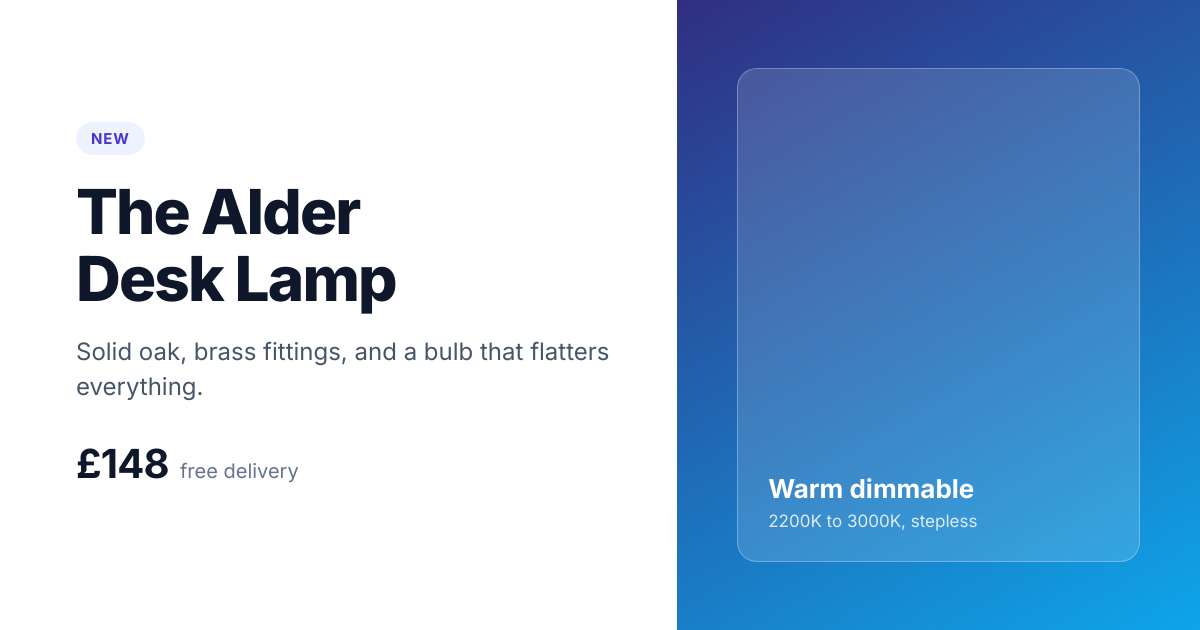
Drop in a complete document with your CSS inside a style tag. The sample that loads with the converter is a 1200 by 630 share card, which is the most common shape people want, and a reasonable skeleton to edit.
Set the output size
The width and height fields set the capture area, and default to 1200 by 630, the Open Graph share card size. Lay your CSS out to those same dimensions so the design fills the frame exactly rather than sitting in a corner of it.
Convert to PNG
The markup loads in a server-side Chrome, styles and webfonts are applied, and the viewport is captured. The whole round trip usually takes a couple of seconds.
Download or copy the hosted URL
The PNG is served from the CDN at a stable URL, so you can download it, hotlink it in an og:image tag, or drop it into an email. Converting again after an edit produces a new file at a new URL.
When to use it
Open Graph and social share cards
One HTML template plus your post title produces a per-page share image, and because it is Chrome doing the rendering, your real brand font and gradient survive the trip. This is the single most common reason people convert HTML to an image.
Images for email bodies
Email clients ignore most modern CSS, so a layout that works on the web falls apart in Outlook. Rendering the block to a PNG and dropping in a single img tag sidesteps the entire email CSS problem.
Charts and dashboards as pictures
A chart drawn with CSS or SVG converts to a PNG that can be pasted into Slack, attached to a digest email, or embedded in a report, without a headless browser in your own infrastructure.
Certificates, badges and tickets
Anything you would lay out in HTML because HTML is the easiest layout engine you have, but which needs to leave the browser as a file. Loop over your recipients, swap the name, render one image each.
Product and listing images
Generate a branded image per product, property, or listing from data you already hold, instead of asking a designer for five hundred variations of the same card.
Examples
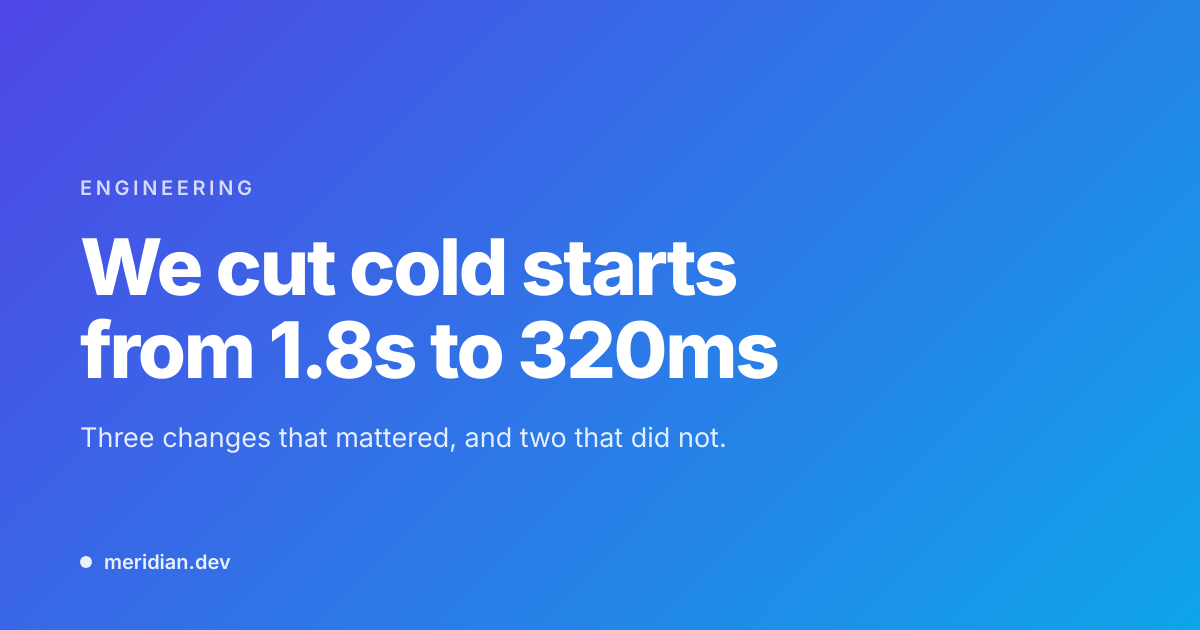
A 1200 by 630 share card
A gradient background, an eyebrow label, and a large headline, sized to the exact dimensions every social platform wants. The sample that loads with the converter is this layout.

A square quote card
A 1080 by 1080 card with a pull quote and attribution, the shape Instagram and LinkedIn favour, built from nothing but a div and some CSS.
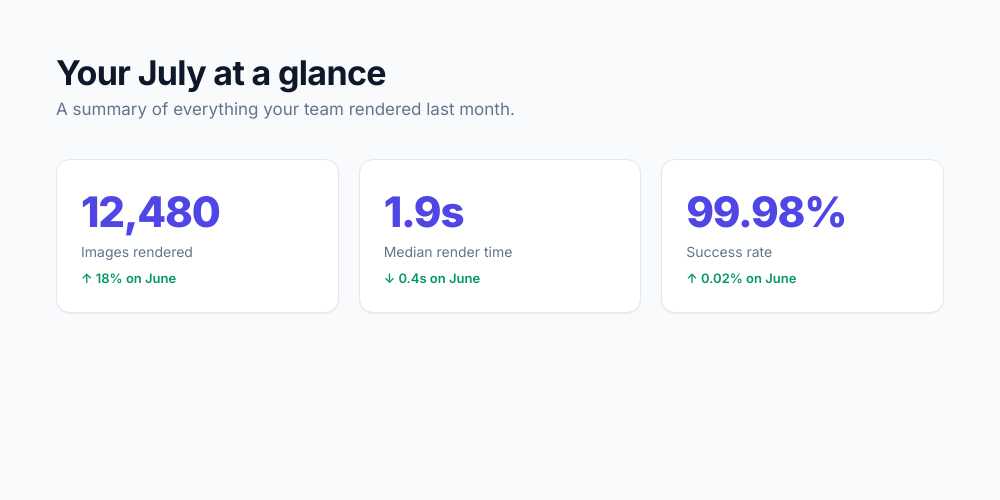
A stat block for an email
Three metrics in a flex row with a heading above them. Rendering this to a PNG means the same layout survives Outlook, which it would not as live HTML.
Use it from your code
The HTML to Image Converter runs on the HTML to Image API, and so can you. Every snippet below is a
complete request: swap YOUR_API_KEY for a key from your dashboard and it runs
as-is. The response carries a url for the finished file.
curl -X POST https://app.html2img.com/api/html \
  -H "X-API-Key: YOUR_API_KEY" \
  -H "Content-Type: application/json" \
-d '{"html":"<div class=\"card\"><h1>Invoice #1042</h1><p>Due within 30 days.</p></div>","css":".card { font-family: system-ui, sans-serif; padding: 48px; }\nh1 { color: #4f46e5; margin: 0 0 8px; }","width":1200,"height":630}'<?php
$payload = [
'html' => '<div class="card"><h1>Invoice #1042</h1><p>Due within 30 days.</p></div>',
'css' => '.card { font-family: system-ui, sans-serif; padding: 48px; }\nh1 { color: #4f46e5; margin: 0 0 8px; }',
'width' => 1200,
'height' => 630,
];
$ch = curl_init('https://app.html2img.com/api/html');
curl_setopt_array($ch, [
CURLOPT_POST => true,
CURLOPT_RETURNTRANSFER => true,
CURLOPT_HTTPHEADER => [
'X-API-Key: YOUR_API_KEY',
'Content-Type: application/json',
],
CURLOPT_POSTFIELDS => json_encode($payload),
]);
$response = json_decode(curl_exec($ch), true);
curl_close($ch);
echo $response['url'];const response = await fetch('https://app.html2img.com/api/html', {
method: 'POST',
headers: {
'X-API-Key': 'YOUR_API_KEY',
'Content-Type': 'application/json',
},
body: JSON.stringify({
"html": "<div class=\"card\"><h1>Invoice #1042</h1><p>Due within 30 days.</p></div>",
"css": ".card { font-family: system-ui, sans-serif; padding: 48px; }\nh1 { color: #4f46e5; margin: 0 0 8px; }",
"width": 1200,
"height": 630
}),
});
const { url } = await response.json();
console.log(url);import requests
response = requests.post(
'https://app.html2img.com/api/html',
headers={'X-API-Key': 'YOUR_API_KEY'},
json={
'html': '<div class="card"><h1>Invoice #1042</h1><p>Due within 30 days.</p></div>',
'css': '.card { font-family: system-ui, sans-serif; padding: 48px; }\nh1 { color: #4f46e5; margin: 0 0 8px; }',
'width': 1200,
'height': 630,
},
)
print(response.json()['url'])using System;
using System.Collections.Generic;
using System.Net.Http;
using System.Net.Http.Json;
var client = new HttpClient();
client.DefaultRequestHeaders.Add("X-API-Key", "YOUR_API_KEY");
var payload = new
{
html = "<div class=\"card\"><h1>Invoice #1042</h1><p>Due within 30 days.</p></div>",
css = ".card { font-family: system-ui, sans-serif; padding: 48px; }\nh1 { color: #4f46e5; margin: 0 0 8px; }",
width = 1200,
height = 630,
};
var response = await client.PostAsJsonAsync("https://app.html2img.com/api/html", payload);
var result = await response.Content.ReadFromJsonAsync<Dictionary<string, string>>();
Console.WriteLine(result["url"]);require 'net/http'
require 'json'
uri = URI('https://app.html2img.com/api/html')
request = Net::HTTP::Post.new(uri)
request['X-API-Key'] = 'YOUR_API_KEY'
request['Content-Type'] = 'application/json'
request.body = {
html: "<div class=\"card\"><h1>Invoice #1042</h1><p>Due within 30 days.</p></div>",
css: ".card { font-family: system-ui, sans-serif; padding: 48px; }\nh1 { color: #4f46e5; margin: 0 0 8px; }",
width: 1200,
height: 630,
}.to_json
response = Net::HTTP.start(uri.hostname, uri.port, use_ssl: true) do |http|
http.request(request)
end
puts JSON.parse(response.body)['url']Tips
Match your CSS to the capture size
The width and height fields size the capture; your CSS decides what fills it. When the two disagree you get whitespace or a crop, and a background set on body tiles across whatever area is left over. Give body the same dimensions you entered, and add box-sizing: border-box so padding does not push the layout past the edge.
Inline images as data URIs
The renderer does not wait indefinitely for remote images, so an img tag pointing at a slow host can come through blank. Base64 the image into the src attribute and the document becomes self-contained, which also makes the render deterministic.
Load webfonts from a fast CDN
Google Fonts and Bunny Fonts both load reliably during the render. Reference the font with a link tag in the head, and give the rule a system-ui fallback so a slow font never produces an unstyled result.
Watch out for text that overflows
A headline that fits your test string will not fit the longest one your data contains. Either clamp it with line-clamp and an ellipsis, or size the text with clamp() so long strings shrink rather than spill out of the card.
Use dpi for retina output
The API accepts a dpi parameter from 1 to 4, which multiplies the pixel dimensions while keeping your CSS the same. dpi 2 on a 1200 by 630 layout gives a 2400 by 1260 file that stays crisp on high-density screens.
Frequently asked questions
What CSS is supported?
Everything Chrome supports, because the renderer is Chrome. Flexbox, grid, custom properties, transforms, filters, gradients, box shadows, webfonts and colour emoji all work. This is the main difference from renderers built on custom layout engines, which support a documented subset and fail outside it.
How do I control the image size?
Use the width and height fields above the convert button, which default to 1200 by 630. From the API, pass width and height on the request. Either way, size your CSS to match: the parameters set the capture viewport and the markup has to fill it.
Does JavaScript in my HTML run?
Yes, the document loads in a real browser. That said, a render that depends on scripts finishing is fragile; anything you can express in static markup and CSS will render faster and more reliably.
Can I get a JPEG or a WebP instead?
PNG is the image format, and PDF is available by passing format as pdf. PNG is the right default for cards and UI-style graphics because it stays sharp on text and flat colour, where JPEG introduces artefacts around exactly those edges.
How is this different from the HTML to PDF converter?
Same markup, different output. PDF gives you a paginated A4 document with selectable text, which suits invoices and reports. PNG gives you a fixed-size picture, which suits share cards and anything that has to display as an image.
Can I render a transparent background?
Yes. Leave the body background unset or set it to transparent and the PNG keeps its alpha channel, which is what you want for a logo or a badge that has to sit on an unknown background.
How do I do this from code?
Post your markup to the HTML endpoint with your API key and read the url from the response. The code examples on this page show the same call in cURL, PHP, JavaScript, Python, C# and Ruby.
How much does it cost?
The converter on this page is free, at three renders an hour and ten a day per visitor with no account. A free account includes 50 renders and full API access, and paid plans start from there.
Related templates
Related guides
How to Generate YouTube Thumbnails from an API and Set Them on Every Video
YouTube thumbnail API guide: render 1280x720 thumbnails from JSON or your own HTML, then set them on every video with the YouTube Data API. Real output shown.
How to Choose an HTML to Image API (and When You Don't Need One)
How to choose an HTML to image API: the rendering engine, pricing model and production details that separate a dozen near-identical services.
More tools
GitHub Social Preview Generator
Build a 1280 by 640 repository preview image for the GitHub social preview field.
HTML to PDF Converter
Paste an HTML document and get back an A4 PDF with selectable text and embedded fonts.
Invoice Image Generator
Render an invoice as a PNG to embed in email bodies without forcing a PDF attachment.