The Complete Guide to Generating PDFs from HTML in 2026
Sooner or later every product needs to produce a PDF. An invoice attached to a payment email, a receipt fired from a webhook, a monthly report, a certificate, a ticket. The design already exists in your application as HTML and CSS, so the real question is never "how do I design a document". It is "what turns this markup into a file", and the answer to that question has been a mess for twenty years.
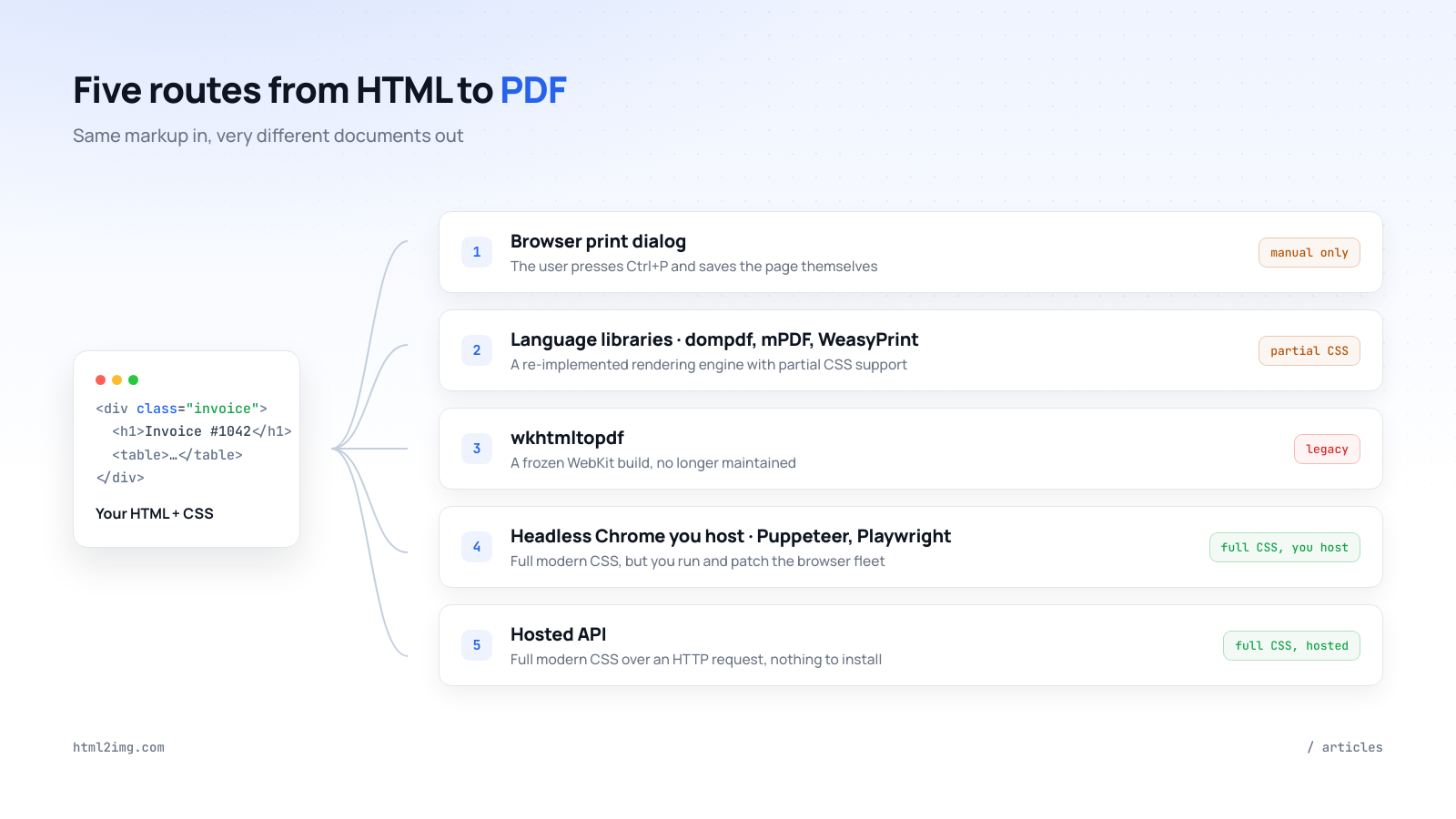
There are five workable routes, and they differ far more than their marketing suggests. Some re-implement CSS from scratch and quietly ignore the parts they never got round to. One is a frozen browser engine from another era that half the internet still recommends. Two involve running Chrome, and the difference between them is whether the Chrome is your problem or somebody else's.
This is the long version: every approach, what it actually renders, what it costs to operate and how to choose. The code is runnable and the trade-offs are stated plainly, including the ones that count against us.
Why HTML is the right source format in the first place
Start with the alternative, because it still exists. You can build PDFs imperatively with a drawing library, positioning text at coordinates: FPDF and TCPDF in PHP, ReportLab in Python, PDFKit in Node. These give you total control and they are miserable to work with. Every layout change is arithmetic, nothing is reusable from your web templates and the person who wrote the invoice generator becomes the only person willing to touch it.
HTML and CSS solve all of that. Your team already knows the language, your design tokens already exist, and the invoice your customer sees in the browser can be the same markup as the document you attach to the email. Templating engines, component libraries and version control all come for free. The entire remaining problem is rendering, which is why the five routes below are really five answers to one question: what is going to interpret your CSS?
Route 1: the browser print dialog
The zero-infrastructure option. Every browser can already turn a page into a PDF: the user presses Ctrl+P, chooses "Save as PDF" and the browser's own print pipeline does the rendering. You influence the output with a print stylesheet:
@media print {
  nav, footer, .sidebar { display: none; }
  .invoice { margin: 0; box-shadow: none; }
  .page-break { break-before: page; }
}
Running this in production? Get an API key with 50 free credits, no card needed.
And you can trigger the dialog from a button:
document.querySelector('#download-pdf')
  .addEventListener('click', () => window.print());
For a "printable version" link this is genuinely the right answer. The rendering engine is a current browser, so your CSS works, and it costs you nothing to run.
It stops being the answer the moment no human is present. You cannot call window.print() from a cron job, a queue worker or a payment webhook, and even when a user does the printing you have no control over the result: paper size, margins, scale, headers and footers are all settings in their dialog, not yours. Two customers printing the same invoice can get two different documents. The print dialog is a feature you offer users, not a rendering pipeline.
Route 2: language libraries that render CSS themselves
The next stop for most teams is a library in their own language: dompdf or mPDF in PHP, WeasyPrint in Python. These parse your HTML and CSS and draw the PDF directly, with no browser anywhere in the stack. Installation is a composer or pip line, rendering happens in-process, and for simple documents it can be quick:
use Dompdf\Dompdf;

$dompdf = new Dompdf();
$dompdf->loadHtml(view('invoices.show', ['invoice' => $invoice])->render());
$dompdf->setPaper('A4');
$dompdf->render();

file_put_contents('invoice-1042.pdf', $dompdf->output());
The catch is the phrase "parse your CSS". These libraries each re-implement a rendering engine, and a rendering engine is one of the largest pieces of software humanity builds. Chrome and Firefox employ hundreds of engineers to keep up with the CSS specification; dompdf is a volunteer project. So the support is partial, and partial in ways that hurt: dompdf and mPDF handle floats and tables from the CSS 2.1 era well, but modern layout, the flexbox and grid your actual stylesheets are written in, either degrades or fails outright. Web fonts, background images and anything decorative are all lotteries you discover ticket by ticket.
The practical consequence is a second stylesheet. You end up maintaining a parallel, simplified, table-based version of your design purely for the PDF path, and debugging it by generating a document, squinting at it and guessing which rule was ignored. That maintenance cost is invisible on day one and permanent afterwards.
WeasyPrint deserves separate credit. It is the most serious of the pure-language options, with genuine paged-media support (@page rules, margin boxes, running headers and footers, page numbers) and much better modern-CSS coverage than the PHP libraries, including flexbox and, in recent releases, grid. If you are in Python and your documents are text-heavy contracts or reports where paged-media control matters more than pixel parity with the browser, it is a defensible choice. It is still not a browser, and complex visual layouts will still surprise you, but it fails less often and less strangely than its PHP cousins.
When these libraries fit: high-volume, simple, text-first documents where in-process rendering speed matters and you accept writing print-specific markup. When they do not: any time the requirement is "make the PDF look like the page", because the engine rendering the page and the engine rendering the PDF are different software.
Route 3: wkhtmltopdf, the legacy workhorse
For a decade the standard answer to this whole problem was wkhtmltopdf: a command-line binary wrapping Qt WebKit that turned URLs or files into PDFs.
wkhtmltopdf --page-size A4 --margin-top 20mm \
  https://example.com/invoices/1042 invoice-1042.pdf
One binary, no browser to manage, a real (for its time) rendering engine. It earned its popularity, which is why so many tutorials, Stack Overflow answers and wrapper packages like Laravel Snappy still point at it.
The problem is the phrase "for its time". The WebKit build inside wkhtmltopdf was frozen years ago, and the project has announced it is no longer maintained. That frozen engine predates most of the CSS you write today: flexbox support is broken in ways that produce silently wrong layouts rather than errors, grid does not exist, and modern JavaScript frequently fails before your page even finishes building itself. Meanwhile you are shipping an unmaintained binary, with an unmaintained browser engine inside it, into every environment that renders documents, which your security team will eventually notice even if you do not.
If you have wkhtmltopdf in production today it is not an emergency, but it is a dead end. New CSS will never work, fixes will never come and every redesign widens the gap between your site and your documents. Treat it as migration debt.
Route 4: headless Chrome you run yourself
The modern self-hosted answer deletes the rendering problem entirely: run actual Chrome, headless, and ask it for a PDF. Puppeteer and Playwright script the browser from Node, Browsershot wraps Puppeteer for Laravel, and Gotenberg packages Chromium behind an HTTP API in a container. Because the renderer is current Chrome, every piece of CSS that works on your site works in the document. Flexbox, grid, custom properties, web fonts, the lot.
const puppeteer = require('puppeteer');

const browser = await puppeteer.launch();
const page = await browser.newPage();
await page.setContent(invoiceHtml, { waitUntil: 'networkidle0' });

await page.pdf({
  path: 'invoice-1042.pdf',
  format: 'A4',
  printBackground: true,
  margin: { top: '20mm', bottom: '20mm', left: '15mm', right: '15mm' },
});

await browser.close();
page.pdf() also gives you the deepest control of any route in this guide: paper formats, landscape, header and footer templates with page numbers, print stylesheets if you want them. On rendering capability and control, self-hosted Chrome is the ceiling.
What you are actually signing up for is operating a browser fleet, and that is where teams get hurt. Chrome is a few hundred megabytes of binary in every deploy and a few hundred megabytes of memory per running instance. Launching a browser per render is slow, so you pool them; pooled browsers leak memory and crash, so you build recycling and retry logic; Chrome ships security updates constantly, so you patch on its schedule, not yours. Serverless makes all of it harder rather than easier: squeezing Chrome into a function runtime means special builds, cold starts measured in seconds and memory limits doing your capacity planning. We wrote up the failure modes in detail in running Puppeteer for HTML to PDF on serverless, and our Puppeteer comparison is honest about when self-hosting is still the right call.
And it sometimes is. If you render millions of documents a month, need custom fonts installed at OS level, cannot send document data to a third party, or need page.pdf()'s full option surface, running your own Chrome earns its keep. For everyone else it is a part-time infrastructure job acquired by accident, in service of what the product spec described as "attach a PDF to the email".
Route 5: a hosted API
The final route is the same current-Chrome rendering as route 4 with the operating removed: POST your HTML to an endpoint, get a URL to a finished PDF back. Nothing in your deploy, nothing to patch, no browser in your memory profile. This is what our HTML to PDF API does. It is one parameter on the same request that renders images:
curl -X POST https://app.html2img.com/api/html \
  -H 'X-API-Key: your-key-here' \
  -H 'Content-Type: application/json' \
  -d '{
    "html": "<h1>Invoice #1042</h1><table>…</table>",
    "format": "pdf"
  }'
{
"success": true,
"id": "ad87ee50-de6f-4d7e-b94c-335be9709aeb",
"credits_remaining": 100,
"url": "https://i.html2img.com/image-1787083396103-936015.pdf"
}That response is not a mock-up. We rendered a full two-page invoice through the API while writing this article, and the url above is the live result: open the PDF and you can select the text, search it and watch it stay sharp at any zoom. The invoice ran long, so it flowed onto a second page on its own; automatic A4 pagination needed no extra parameters. The same works for any public URL through the URL to PDF API, which loads the page in Chrome server-side, and you can try either without an account using the free HTML to PDF and URL to PDF converters.
Hosted services split into two families, and knowing which you are buying matters.
Document-first services are built around print. DocRaptor runs the Prince engine, and PDFShift, Api2Pdf and PDFCrowd expose Chrome's print pipeline with the dials attached: page sizes and orientations, custom margins, @media print stylesheets, header and footer templates. If your requirement is a legal contract with numbered pages and precise page geometry, this family is built for you.
Render-parity services, which is where HTML to Image sits, are built around one promise: the PDF looks exactly like the image render of the same input. Your normal screen CSS applies, backgrounds print by default, web fonts are embedded, and the output is a real vector PDF rather than a screenshot glued into a document shell. The scope is deliberately narrow: pages are A4 portrait, @media print rules are not applied, and the image sizing parameters do not apply in PDF mode (content reflows to the page width, with scale_to_fit available for fixed-width designs). If you need Letter, landscape or print stylesheets, our PDFShift and DocRaptor comparisons say plainly that those tools will serve you better; if you want your documents to match your renders with one parameter, that is the exact trade we built.
The honest costs of any hosted route: a network round trip per document, your document HTML transiting a third party (check your compliance requirements) and a bill that scales with volume. The honest benefit is that the entire operational surface of routes 3 and 4 becomes an HTTP request with a webhook option for slow renders.
The test that separates real PDFs from screenshots in a wrapper
Whichever route you choose, run this thirty-second test before you integrate, because a surprising number of tools fail it. Generate a document, open it and press Ctrl+F. Search for a word you can see. Then try to select a sentence. Then zoom to 400%.
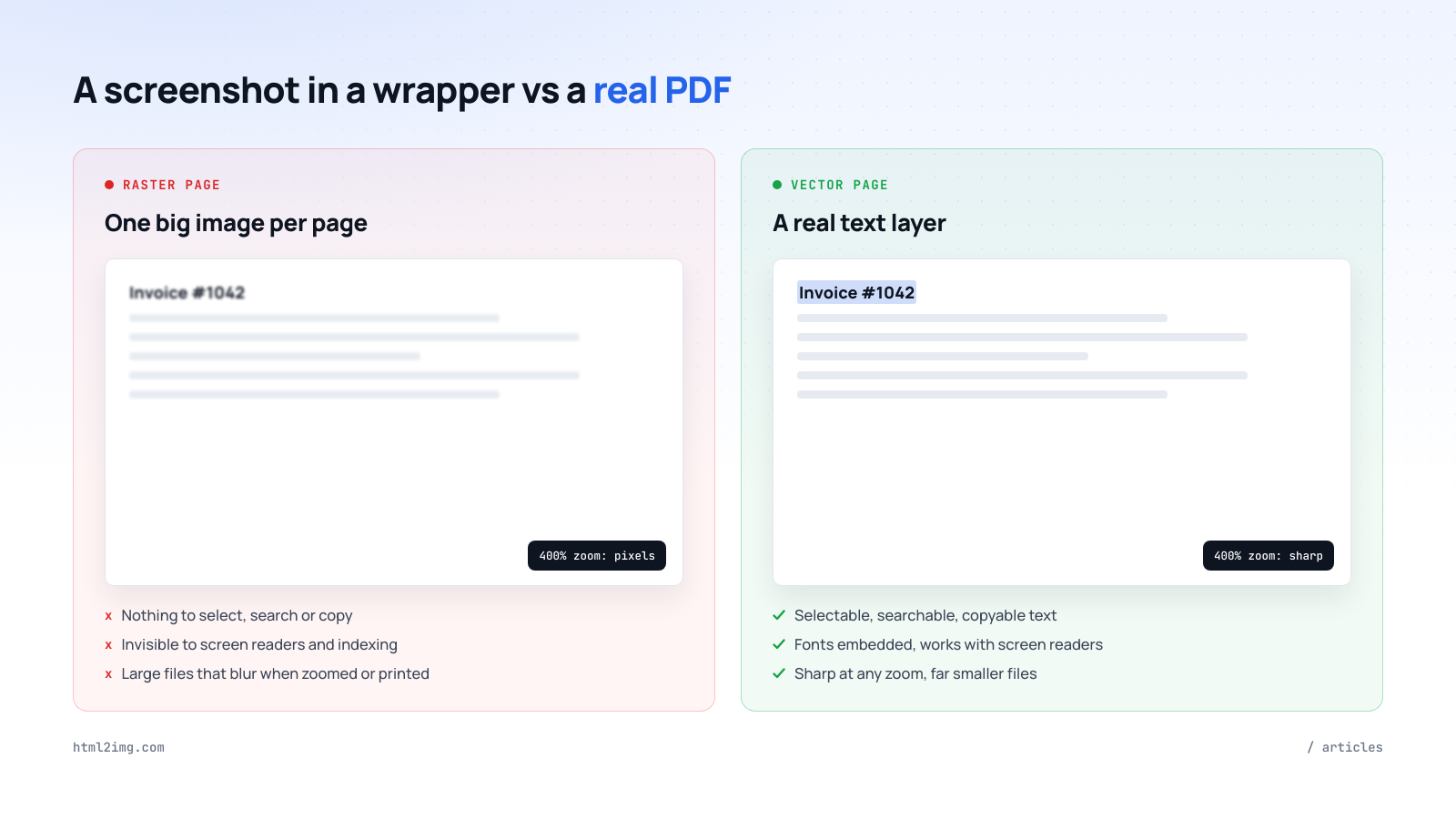
A real PDF has a text layer: the text is selectable, searchable and copyable, the fonts travel embedded inside the file so it renders identically on every machine, and text and vector shapes stay sharp at any magnification. A screenshot in a wrapper is one large image per page inside a PDF shell. Nothing selects, nothing searches, screen readers get silence, and both zooming and printing reveal pixels. It is also a far bigger file, because a page of rasterised text weighs more than the text itself ever would.
This matters beyond aesthetics. Searchability is why a receipt is findable in an inbox years later. The text layer is what accessibility tooling reads. And archived documents that cannot be indexed are barely documents at all. Rasterised output is acceptable for exactly one case: when the content genuinely is an image. For anything carrying text, treat a failed Ctrl+F as disqualifying.
Pagination, the part everyone hits second
The first render is a demo; the second is a real document that runs past one page, and pagination is where each route shows its character. Chrome-based routes and WeasyPrint respect the CSS fragmentation properties, so you can keep a table row, a totals block or a signature area intact:
tr, .totals, .signature-block {
  break-inside: avoid;
}
.chapter {
  break-before: page;
}
The older libraries and wkhtmltopdf support fragmentation partially and eccentrically, which in practice means headings orphaned at the bottom of pages and table rows sliced through the middle. Chrome's print pipeline (routes 4 and the document-first APIs) additionally gives you @page margins and repeating headers and footers. A render-parity service handles the flow automatically, as the two-page invoice above shows, at the cost of that finer control. We cover the techniques, and the traps, in HTML to PDF page breaks.
Whatever the route, test pagination with real data early. The invoice with forty line items, the name that wraps, the report section that lands exactly on a page boundary: these find the bugs that the three-line demo never will.
What each route actually costs
Sticker prices mislead here because three of the five routes are "free". A realistic comparison prices the operating, not just the software.
The print dialog costs nothing and automates nothing. Language libraries cost CPU plus the permanent tax of the second stylesheet and its debugging cycle; cheap at high volume for simple documents, expensive in engineering hours the moment designs get ambitious. wkhtmltopdf costs whatever an unmaintained browser engine in production costs you, which is a number that only grows. Self-hosted Chrome costs real infrastructure: the memory to run a browser pool, the engineering time to build pooling, recycling and retries, and the ongoing patching, which typically lands somewhere between "a few days a quarter" and "someone's part-time job". A hosted API converts all of that into a per-document price that is trivial at hundreds of documents a month and a genuine line item at millions; on our pricing a PDF costs one credit, the same as an image, from the same pool.
The crossover logic is straightforward: hosted APIs win while your volume is worth less than your engineers' time, and self-hosting starts to pay when the bill outgrows the salary fraction it replaces. We ran the numbers in more depth in what PDF generation actually costs.
Choosing: the short version
Your situation | Use |
|---|---|
A "printable version" link for users | The browser's print dialog and a print stylesheet |
High-volume, simple, text-first documents in-process | A language library, ideally WeasyPrint if you are in Python |
An existing wkhtmltopdf pipeline | Plan the migration; it is a dead end |
Millions of renders, OS-level control or strict data residency | Self-hosted headless Chrome, budgeted as infrastructure |
Precise page geometry, print stylesheets, legal documents | A document-first API such as DocRaptor or PDFShift |
Documents that match your web design, without running a browser | A render-parity API: HTML to PDF |
Two closing rules that hold across every route. Render from the same markup your users see, because parallel document templates rot. And run the Ctrl+F test on day one, because a PDF nobody can search is a picture with a file extension.
Want invoices, certificates or reports rendered as real vector PDFs from the HTML you already have, without running a browser yourself? Browse the templates gallery or read the docs to get started.

Written by
Mike Griffiths
Mike has spent the last 20 years crafting software solutions for all kinds of amazing businesses. He specializes in building digital products and APIs that make a real difference. As an expert in Laravel and a voting member on the PHP language, Mike helps shape the future of web development.