How to Convert Markdown to an Image (Without Screenshotting Your Editor)
Markdown is where your writing already lives. Release notes, changelogs, README sections, comparison tables, meeting notes: if you work anywhere near code, the structured version of your thinking is sitting in .md files. The problem is that almost nowhere that writing needs to go will accept it.
Paste a Markdown table into Slack and it collapses into a line of pipes. Paste a release note into X or LinkedIn and every heading, bullet and bold marker is stripped to flat text. Paste it into an email and half your recipients see literal asterisks. The formatting that made the document readable is exactly the part that does not survive the journey.
So you do what everyone does: open the preview pane, zoom to something sensible and take a screenshot. It works, in the way that holding a door shut works instead of fixing the lock.
Why screenshotting your editor is the wrong fix
A screenshot carries everything you did not want along with the content. Your editor theme comes with it, so a dark-mode preview lands in a light-mode inbox looking like a ransom note. The resolution is whatever your display happens to be, so text that was crisp on your laptop turns soft the moment a retina screen or a zoomed-in phone gets hold of it. The width is whatever your window was. The crop is hand-drawn, so there is a sliver of scrollbar down one edge or a line of the next section along the bottom.
And it is manual. If the release notes change, you screenshot again. If you publish notes every fortnight, that is a small recurring chore that never gets faster and never looks quite the same twice. Fine once; wrong as a workflow.
The better fix is to stop capturing your screen and start rendering the document. Convert the Markdown to HTML, give it a clean stylesheet, and render it in a real browser at a fixed width. The output is sharp at any size, consistent every time, and the formatting survives because it is no longer formatting. It is pixels.
How the conversion actually works
There are four stages, and none of them is exotic.
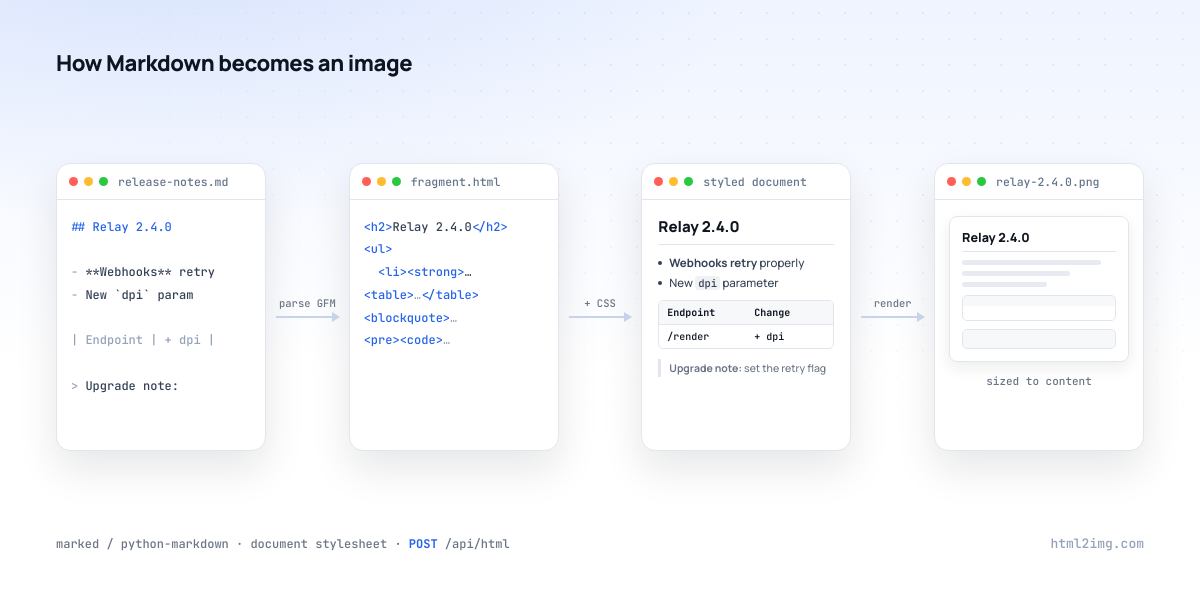
First the Markdown is parsed to HTML with a GitHub-flavoured parser, so tables, strikethrough, task lists and fenced code blocks all convert rather than falling through as plain text. The result is a bare fragment with no opinion about its own appearance. Second, that fragment gets wrapped in a small document stylesheet: the spacing, rules and monospace treatment people expect from rendered Markdown. Third, the styled document is rendered in a real browser at a fixed width. Fourth, the capture height follows the content, so a two-line note produces a small image and a long changelog produces a tall one, with nothing cropped at the bottom.
That last stage is what separates this from screenshotting. The image is not a picture of a window that happened to contain your document. It is the document.
For one-offs, convert it in the browser
If you need this occasionally, the Markdown to Image Converter does the whole pipeline in the browser. Paste GitHub-flavoured Markdown, get back a PNG rendered at 1,000 pixels wide, sized to the content, served from a CDN at a stable URL. Headings, nested lists, tables, blockquotes, task lists and fenced code blocks all render the way you would see them on GitHub.
Here is a release note that started life as thirty lines of Markdown:
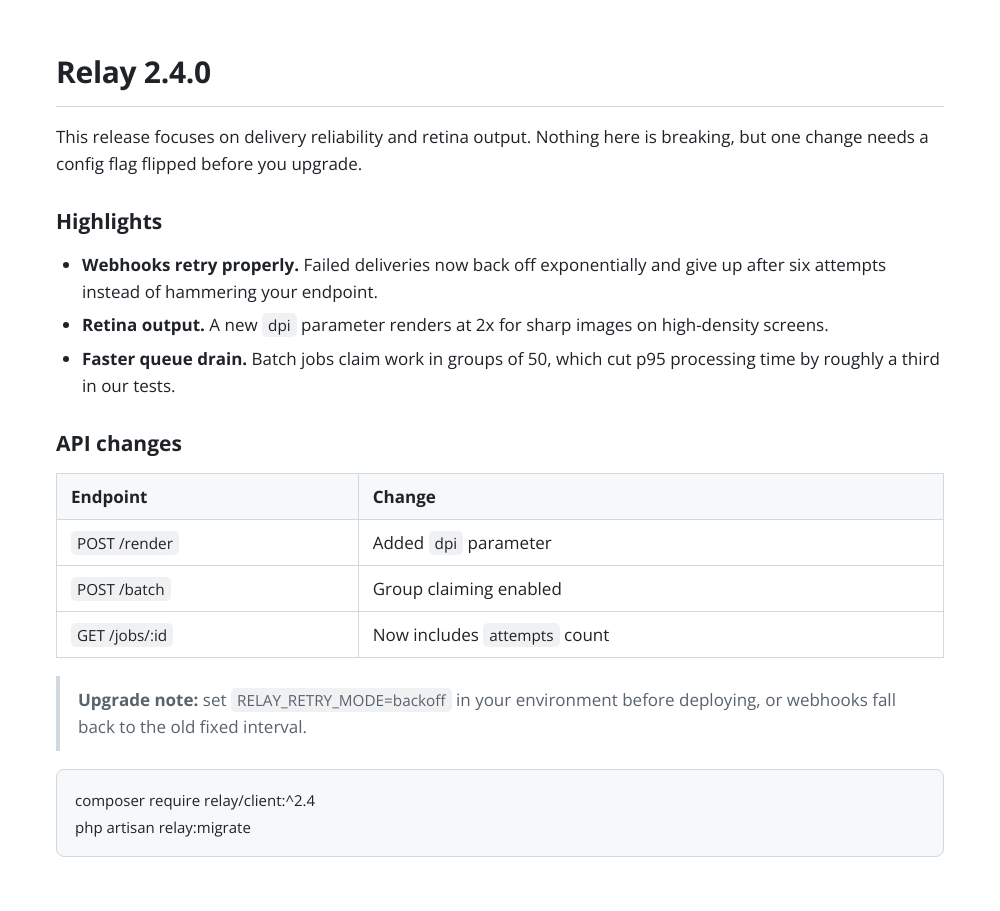
Every element survived: the bold lead-ins on the bullets, the inline code, the table columns, the upgrade warning in the blockquote, the install commands in the fenced block. Post that image to any network and it looks the same on all of them.
For a one-off, that is the whole job. The rest of this article is for when you want it to happen without you.
Doing it from code
The HTML to Image API renders HTML, not Markdown, and that is a deliberate boundary: rendering is the hard part worth outsourcing, while Markdown parsing is a solved problem in every language you might be writing. So the recipe is always the same. Parse the Markdown yourself, wrap it in the stylesheet below, and send the result as the html field.
Node.js
Use marked, which handles GitHub-flavoured Markdown out of the box:
import { readFile } from "node:fs/promises";
import { marked } from "marked";
import { stylesheet } from "./stylesheet.js";

const markdown = await readFile("release-notes.md", "utf8");
const fragment = marked.parse(markdown, { gfm: true });

const html = `<!doctype html>
<html><head><meta charset="utf-8"><style>${stylesheet}</style></head>
<body>${fragment}</body></html>`;

const response = await fetch("https://app.html2img.com/api/html", {
  method: "POST",
  headers: {
    "Content-Type": "application/json",
    "X-API-Key": process.env.HTML2IMG_KEY,
  },
  body: JSON.stringify({ html, width: 1000, fullpage: true }),
});

const { url } = await response.json();
console.log(url);
Running this in production? Get an API key with 50 free credits, no card needed.
The response includes a hosted URL for the finished PNG, so there is nothing to download unless you want the file locally.
Python
Same shape with the markdown package. Enable the tables and fenced_code extensions or those elements will pass through unparsed:
import os
import pathlib

import markdown
import requests

STYLESHEET = pathlib.Path("stylesheet.css").read_text()

md = pathlib.Path("release-notes.md").read_text()
fragment = markdown.markdown(md, extensions=["tables", "fenced_code"])

html = f"""<!doctype html>
<html><head><meta charset="utf-8"><style>{STYLESHEET}</style></head>
<body>{fragment}</body></html>"""

response = requests.post(
    "https://app.html2img.com/api/html",
    headers={"X-API-Key": os.environ["HTML2IMG_KEY"]},
    json={"html": html, "width": 1000, "fullpage": True},
)

print(response.json()["url"])
The release note earlier in this article came out of this exact script. Nothing was touched up afterwards.
PHP
Use league/commonmark, which ships a GitHub-flavoured converter:
use League\CommonMark\GithubFlavoredMarkdownConverter;

$converter = new GithubFlavoredMarkdownConverter();
$fragment = $converter->convert(file_get_contents('release-notes.md'));
Wrap the fragment and POST it exactly as in the examples above. In Laravel that is one Http::withHeaders([...])->post(...) call with the same JSON body.
The stylesheet that makes it look rendered
The parser gives you semantics; this gives you the look. It is deliberately close to how GitHub renders Markdown, because that is what people expect a rendered document to look like:
body {
  margin: 0; padding: 48px 56px;
  font-family: -apple-system, "Segoe UI", Helvetica, Arial, sans-serif;
  font-size: 17px; line-height: 1.6; color: #1f2328; background: #ffffff;
}
h2 { font-size: 30px; margin: 0 0 16px; padding-bottom: 10px;
     border-bottom: 1px solid #d1d9e0; }
h3 { font-size: 21px; margin: 28px 0 12px; }
p  { margin: 0 0 14px; }
ul { margin: 0 0 16px; padding-left: 26px; }
li { margin: 6px 0; }
table { border-collapse: collapse; margin: 0 0 18px; width: 100%; }
th, td { border: 1px solid #d1d9e0; padding: 9px 14px; text-align: left; }
th { background: #f6f8fa; font-weight: 600; }
blockquote { margin: 0 0 18px; padding: 4px 18px;
             border-left: 4px solid #d1d9e0; color: #59636e; }
code { font-family: ui-monospace, "SF Mono", Menlo, Consolas, monospace;
       font-size: 0.9em; background: #f0f1f3;
       padding: 2px 6px; border-radius: 5px; }
pre  { background: #f6f8fa; border: 1px solid #d1d9e0; border-radius: 8px;
       padding: 16px 18px; overflow-x: auto; }
pre code { background: none; padding: 0; font-size: 15px; }
Swap the font stack for your brand face, tint the borders, put your logo in a header div above the content. The structure does not change.
Let the image size itself
Two parameters matter. width sets the line length, and 1,000 pixels reads well for a document. Then set fullpage: true so the capture height follows the content instead of a fixed viewport. That is what lets the same code handle a three-line note and a forty-line changelog without either cropping the bottom off the long one or leaving a field of white under the short one.
If your documents are heavy on syntax-highlighted code and light on everything else, you may be better served rendering them with the code screenshot tool instead, where the highlighting itself is the point.
Where this earns its keep
Release notes as social posts are the obvious one: a changelog posted as an image keeps its structure on platforms that would flatten it to a paragraph, and one image works on every network rather than reformatting for each. Tables in Slack are the daily one. A rendered table keeps its columns aligned and is readable on a phone, which is more than can be said for a paste that arrives as a wall of pipe characters.
Email is the sneaky one. Clients disagree about almost every layout feature, which is why images in email are the reliable way to ship anything with real formatting. A PNG of the rendered Markdown looks identical in Gmail, Outlook and Apple Mail because there is nothing left for the client to interpret.
And because the whole thing is one HTTP call, it automates. Run it in CI when a release tags, in a cron that turns the week's merged PRs into a Friday summary card, or from an n8n workflow triggered by a form submission. The Markdown was already being written. Now it travels.
Markdown in, a clean PNG out, and no browser to run yourself. Browse the templates gallery or read the docs to get started.

Written by
Mike Griffiths
Mike has spent the last 20 years crafting software solutions for all kinds of amazing businesses. He specializes in building digital products and APIs that make a real difference. As an expert in Laravel and a voting member on the PHP language, Mike helps shape the future of web development.