Images in email that render everywhere
Email is the one place on the web where your CSS does not render the way you wrote it. Outlook on Windows lays out mail with Microsoft Word's rendering engine, not a browser. Gmail strips parts of your styles and ignores large amounts of CSS. Apple Mail is closer to a real browser, the mobile clients each have their own quirks, and none of them run JavaScript. Flexbox, grid, web fonts, gradients, rounded corners, anything past the basics is a gamble from one client to the next. The one thing that renders identically in every inbox is an image. So for the parts of an email that carry your design, you render the design to a PNG and embed that.
Why HTML in email is so inconsistent
The email clients never agreed on a rendering engine. Outlook on Windows uses Word. Gmail rewrites your markup and drops styles it does not like. Older clients and corporate webmail are stuck years behind. There is a whole site, Can I email, that exists only to track which CSS feature works in which client, and the table is full of partial support and red cells. The practical result is that you write defensive, table-based HTML with everything inlined, and you still get different output in Outlook than you do in Gmail. Litmus keeps a useful summary of the constraints email design works under.
You can fight that for the whole email, or you can take the parts that need to look exact and render them as images, where there is nothing left to disagree about.
The image is the reliable primitive
Every email client renders an <img>. A PNG looks the same in Outlook, Gmail, Apple Mail and on a phone, because there is no layout or font for the client to get wrong. So for anything that carries the design, a header banner, a brand masthead, a chart, a precisely laid-out promo block, you build it once in real CSS, render it server-side to a PNG and drop the image into the email. The client only has to display a picture, which is the one thing they all do correctly.
The HTML to Image API does that render for you, and there are ready-made templates for the common email pieces so you do not have to build the markup from scratch.
Render the design, keep the interaction in HTML
The discipline that matters is knowing what should be an image and what should not.
Render as an image: header and hero banners, brand mastheads, charts and data visualisations and any block whose look depends on a web font, a gradient or a layout that email CSS mangles.
Keep as real HTML: body copy, links and calls to action. Text in an email needs to stay selectable, translatable and readable by screen readers, so it should be real text rather than pixels. Buttons and links need to be real anchors so they stay accessible, keep your click tracking working and still function when the client has blocked images. An email is an image where the design matters and HTML where the words and the clicks matter.
A worked example: a newsletter header
The email header template renders a 1200x300 banner, which is the 4:1 slot most email tools expose at the top of the body. You POST the title and a brand accent colour, plus an optional issue number and date, and you get back a PNG URL. A single call looks like this:
curl -X POST https://app.html2img.com/api/v1/templates/email-header \
  -H "X-API-Key: YOUR_API_KEY" \
  -H "Content-Type: application/json" \
  -d '{
    "title": "The Production Hour Weekly",
    "subtitle": "Conversations from the people running real systems",
    "issue_number": "Issue #043",
    "publication_date": "23 June 2026",
    "accent_color": "#6366F1",
    "background_color": "#0F172A"
  }'
That produces this banner:

You then embed the returned URL in your email HTML like any other image, with explicit dimensions and real alt text:
<img src="https://i.html2img.com/your-banner.png"
     alt="The Production Hour Weekly - Issue #043"
     width="600" height="150"
     style="display:block; width:100%; max-width:600px; height:auto;" />
Render the banner at 1200x300 but display it at 600x150, half size, so it stays sharp on retina screens. The width and height attributes reserve the space before the image loads, which stops the layout jumping, and they give the client something sensible to show while images are still blocked. Setting up your key is covered in the authentication guide, and the email header API reference lists every input the template accepts.
Transactional email: match the banner to the message
The same template covers transactional mail. Change the title to suit the message, "Welcome", "Your receipt", "Password reset", and the email reads as deliberate design rather than a marketing banner bolted onto a receipt. Here is a receipt header from the same endpoint, just with different inputs:
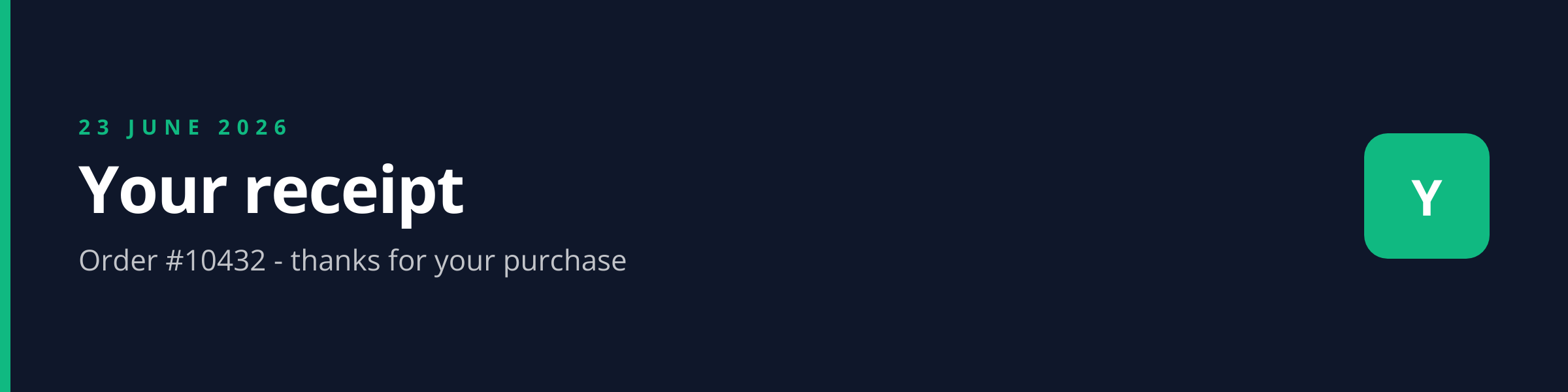
Transactional senders like Postmark and Resend accept a remote PNG URL in the email body, so the same pattern works whether the mail comes from your marketing tool or your application. If you are generating receipts or invoices specifically, the invoice to image guide walks through the same approach for the document itself.
The gotchas that actually bite
A few things catch people out, and most of them come down to how email clients treat images.
Images get blocked. Outlook and Gmail often hide images until the reader clicks to load them. Two rules follow from that. Always write meaningful alt text, and never put anything critical, the offer, the unsubscribe link, the actual call to action, only inside an image. The email has to make sense with images off.
Retina screens. A 1x banner looks soft on a high-density display. Render at 2x by setting dpi=2 on the API, which gives a 2400x600 PNG, and display it at the 1x size. The file is larger but still well within ESP limits.
Dark mode. Some clients invert backgrounds in dark mode, so a banner built for a white email body can clash. Use a transparent background with colours that work on either surface, and test in Gmail and Outlook dark themes before you send.
Width and mobile. Keep the banner to the email body width, around 600px on display, and keep titles short, under about 50 characters, so they stay legible when a mobile client compresses the body into a single column.
File size. Keep the PNG modest. The email header template lands between 30KB and 100KB, which loads quickly and clears the size caps every major ESP enforces.
Automating it per send
Because the banner is just an API call, you render it at the moment you need it. A newsletter generates a fresh banner per issue, a transactional flow renders one per message type, and the call finishes in a second or two. Trigger it from the webhook your CMS or ESP already fires, cache the returned URL against the issue or order and drop that URL into the template. For large batches, the API can render asynchronously and post the finished URL to a webhook so you are not blocking on every render.
Where to start
The email header template is the quickest way to ship banners, because the layout and the inputs are already built. For other in-email graphics, product cards, receipts, charts, the same render-and-embed approach applies across the template gallery.
Want branded email banners that look the same in every inbox, rendered from a single API call? Browse the templates gallery or read the docs to get started.

Written by
Mike Griffiths
Mike has spent the last 20 years crafting software solutions for all kinds of amazing businesses. He specializes in building digital products and APIs that make a real difference. As an expert in Laravel and a voting member on the PHP language, Mike helps shape the future of web development.