---
title: "How HTML to PDF Conversion Actually Works: Rendering Engines, Text Objects and Fonts"
description: "How HTML to PDF conversion works inside the engine: the render pipeline, what a text layer really is, font subsetting, the raster fallback, and three commands to check any PDF."
url: "https://html2img.com/articles/how-html-to-pdf-conversion-works/"
section: "Deep dives"
published: "2026-09-03T09:18:10.638Z"
updated: "2026-09-03T09:38:20.118Z"
---

# How HTML to PDF Conversion Actually Works: Rendering Engines, Text Objects and Fonts

By Mike Griffiths. https://html2img.com/articles/how-html-to-pdf-conversion-works/

![How HTML to PDF Conversion Actually Works: Rendering Engines, Text Objects and Fonts](https://a.storyblok.com/f/320619/1200x630/02b86b65c1/og.png)

Two PDFs can look identical on screen and be completely different files. Open both, and one lets you select a line, search for an invoice number and print it sharp at 300 dpi. The other is a photograph of a page: nothing to select, nothing to find, and every zoom step makes the text softer. Both came from HTML. Both were produced by "an HTML to PDF converter". The difference is what happened in the last few milliseconds of the render.

This article is about that last step. It covers how a rendering engine turns markup into a page, what a PDF actually stores when the output is done properly, how fonts get inside the file, where the raster fallback kicks in, and the three commands that tell you in seconds whether a converter produced a document or a screenshot. If you want the survey of libraries and services instead, start with the [complete guide to generating PDFs from HTML](https://html2img.com/articles/generate-pdf-from-html/) and come back here when you want to know why they differ.

## The pipeline is the same until the final stage

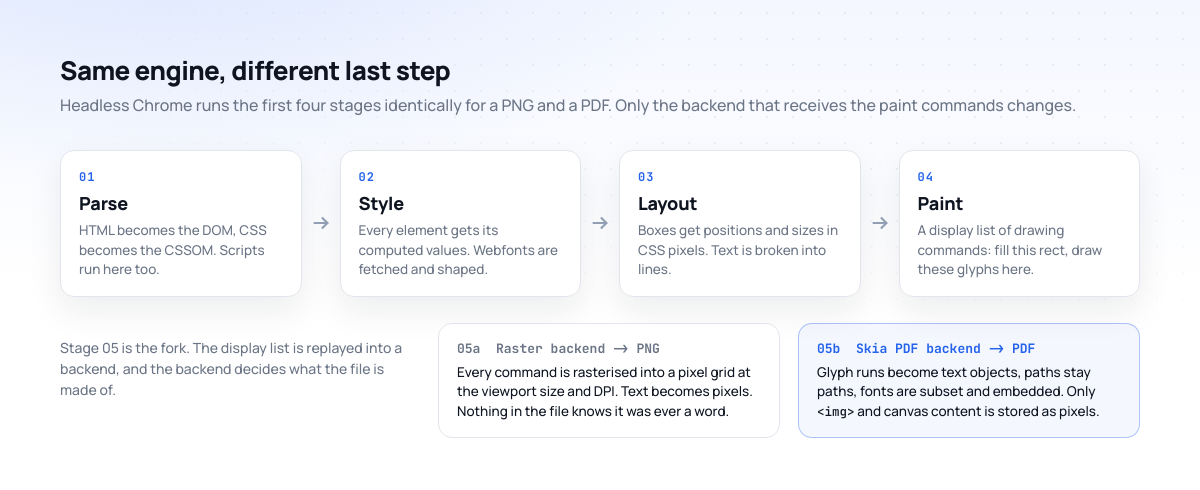
Every browser-based converter, whether that is headless Chrome on your own server, a Puppeteer script or a hosted API, runs the same pipeline it uses to put a page on your monitor. The HTML is parsed into a DOM. The CSS is parsed into a CSSOM and resolved into computed styles for every element. Layout assigns each box a position and a size, measured in CSS pixels, and breaks text into lines. Paint walks the layout tree and produces a display list: a flat sequence of drawing commands such as "fill this rectangle", "stroke this border", "draw these glyphs from this font at this position".
![The five-stage rendering pipeline: parse, style, layout and paint are identical for PNG and PDF output, and only the final backend differs](https://i.html2img.com/image-1788426650992-966136.png)

None of those four stages knows or cares what the output will be. The fork is the fifth stage, when the display list is replayed into a backend. A raster backend replays it into a pixel grid and writes a PNG. Chromium's PDF backend, which is part of the Skia graphics library, replays the same list into PDF drawing operators and writes a document. The commands are identical. What differs is what each backend is allowed to preserve.

That is why a PDF from headless Chrome matches a PNG from headless Chrome so closely: same layout, same fonts, same line breaks. And it is why the two things that go wrong most often, missing fonts and rasterised pages, both happen at stage five rather than earlier.

Chrome is not the only engine in the game. Prince, WeasyPrint and the old WebKit build inside wkhtmltopdf each have their own pipeline and their own CSS support, and if you are choosing between them the [HTML to PDF CSS support comparison](https://html2img.com/articles/html-to-pdf-css-support/) covers the differences in detail. The mechanics below, though, hold for all of them. A PDF is a PDF, whichever engine wrote it.

## Pixels in, points out

CSS measures in pixels. PDF measures in points, defined as 1/72 of an inch. CSS defines its pixel as 1/96 of an inch. So the conversion is fixed: every CSS pixel becomes 0.75 pt, and an A4 page, 210 mm by 297 mm, is 794 by 1123 CSS pixels wide in layout and 595.3 by 841.9 pt in the file.

You can see that arithmetic in the output. Here is `pdfinfo` on a PDF the HTML to Image API produced from a short invoice this morning. The page size lands within a fraction of a point of the nominal figure, the remainder being rounding from the pixel-to-point conversion:

```
$ pdfinfo invoice.pdf
Creator:         Chromium
Producer:        Skia/PDF m131
Tagged:          yes
Pages:           1
Page size:       595.92 x 841.92 pts (A4)
PDF version:     1.4
File size:       69467 bytes
```

The producer line tells you which backend wrote the file, and `Tagged: yes` tells you the engine kept the document structure (headings, paragraphs, table cells) as a tag tree rather than just a pile of glyphs. That matters for screen readers and for tools that extract structured data from PDFs, and it is another thing a screenshot-in-a-wrapper cannot give you.

The unit change also explains a rule that surprises people: DPI does nothing to a PDF. Raising the device pixel ratio makes a raster capture sharper because it adds pixels. A vector page has no pixels to add. Text is stored as glyph references and resolved by the viewer at whatever zoom the reader picks, so a 1x render and a 4x render of the same HTML produce byte-identical vector content. The `dpi` parameter is [ignored in PDF mode](https://html2img.com/docs/parameters/format) for exactly that reason.

## What a text layer actually is

People say a PDF "has a text layer" as though it were a transparent sheet laid over an image. That is how OCR software repairs a scanned document, and it is where the phrase comes from, but a properly generated PDF has no such thing. The text is not a layer on top of the page. The text is the page.

Inside the content stream of a page you find text objects. A text object selects a font resource and a size, positions the cursor, and then emits a string of glyph IDs to draw. Stripped of the surrounding noise, the line "Total $81.50" from the invoice above looks something like this in the file:

```
BT
  /F2 13.5 Tf
  1 0 0 -1 48 612 Tm
  [<0038 0052 0057 0044 004F> -250 <0004 001B 0014 0011 0018 0013>] TJ
ET
```

`Tf` picks a font. `Tm` sets the text matrix, which is where the 0.75 scale and the flipped y-axis from the CSS coordinate system are folded in. `TJ` draws the glyphs. Those hex values are not characters. They are glyph indices into the embedded font, and on their own they mean nothing to a search box.

What makes the text selectable is a second structure attached to the font resource: the ToUnicode CMap. It maps each glyph ID back to the Unicode code point it was drawn from, so a viewer can turn "0038 0052 0057" into the string "Tot" when you drag across it or hit Ctrl+F. If the CMap is missing, the text still renders perfectly and still scales perfectly, but you cannot copy it and `pdftotext` returns garbage or nothing.

Which is why the third check below matters. This is the same file run through `pdftotext -layout`:

```
$ pdftotext -layout invoice.pdf -
Northgate Coffee, invoice #1042
Issued 3 September 2026. Payment due within 30 days.

 ITEM                              QTY   PRICE

 Ethiopian Yirgacheffe, 1 kg       4     $72.00
 Filter papers, box of 100         2     $9.50
 Total                                   $81.50

                  PAID         Reference NGC-2026-1042
```

Every word came back, in reading order, including the word `PAID` which was drawn with an inline `<svg>` `<text>` element. Skia converts SVG text into the same text objects as HTML text, so it stays searchable too. The only content that did not come back is the logo, and that is the raster fallback, covered further down.

## How fonts get inside the file

A PDF that references a font by name and does not carry the font data is at the mercy of whichever machine opens it. Acrobat on a Mac substitutes one thing, Chrome's built-in viewer substitutes another, a print shop's RIP substitutes a third, and the line lengths shift with each. A document that must look the same everywhere has to embed its fonts.

Embedding the whole font is wasteful. A full Latin plus Cyrillic plus Greek family can run to hundreds of kilobytes per weight, and an invoice uses forty glyphs of it. So the backend subsets: it collects the glyphs actually drawn, builds a new font containing only those, and embeds that. You can spot a subset by the six-letter tag in front of the font name.

```
$ pdffonts invoice.pdf
name                              type          encoding    emb sub uni
--------------------------------- ------------- ----------- --- --- ---
AAAAAA+ManropeExtraLight_800wght  Type 3        Custom      yes yes yes
BAAAAA+ManropeExtraLight_500wght  Type 3        Custom      yes yes yes
FAAAAA+JetBrainsMono-Medium       CID TrueType  Identity-H  yes yes yes
```

The three columns on the right are the ones to read. `emb` is whether the font data is in the file. `sub` is whether it was subset. `uni` is whether a ToUnicode map exists, which is the selectable-text guarantee from the previous section. You want `yes yes yes` on every row.

The `type` column is the interesting one, because this invoice used two webfonts from Google Fonts and they were embedded in two different ways.

JetBrains Mono was served as a static TrueType file, and Chrome embedded it as a `CID TrueType` font: the original glyph outlines, subset, with a two-byte identity encoding. That is the format you would hope for and the one every PDF tool understands.

Manrope was served as a variable font, with a `wght` axis, and Chrome embedded each instance it needed as a `Type 3` font. Type 3 is an older PDF construct where each glyph is defined by its own small stream of drawing operators rather than by TrueType or CFF outlines. Skia uses it whenever it cannot or will not embed the source font directly, and variable-font instances are the most common trigger, because the file on disk does not contain a font at weight 800; it contains a font plus instructions for computing weight 800. Rather than flatten and re-encode the outlines into a fresh TrueType, Skia draws them as Type 3 glyph procedures.

In practice that is fine. Type 3 glyphs are still vectors, still scale to any zoom, still carry a ToUnicode map, and every mainstream viewer renders them correctly. Where it bites is at the edges: PDF/A validators can complain about Type 3 fonts, some accessibility checkers score them lower, and a few font-inspection tools mislabel the weight, which is why the name above says `ExtraLight_800wght`, the default instance name followed by the axis value that was actually rendered. If you are producing documents that must pass PDF/A or a strict accessibility audit, serve static font files rather than variable ones. Everything else in the pipeline stays the same.

One more thing the table shows. There is no row for the fallback fonts you would see if a webfont had failed to load. When a `@font-face` download times out, Chrome silently draws the text in the fallback family, and the PDF embeds that instead. The document still validates. It just looks wrong. `pdffonts` is the quickest way to prove that the face you asked for is the face in the file.

## Vector where it can, raster where it must

The PDF backend keeps everything it can as geometry. Text becomes text objects. Borders, backgrounds, rounded corners, box shadows and CSS gradients become paths and shading patterns. Inline SVG becomes paths. All of it is resolution-independent, and all of it is small: the invoice above, with three embedded font subsets, is 69 KB.

![Side by side at 700% zoom: a vector text object stays crisp while a rasterised page dissolves into pixels](https://i.html2img.com/image-1788426694396-987119.png)

Two kinds of content have no vector form and are stored as pixels: `<img>` elements (other than SVG images, which are vectorised) and `<canvas>` contents. They go into the file as image XObjects at whatever resolution they arrived at, which `pdfimages` will list for you:

```
$ pdfimages -list invoice.pdf
page   num  type   width height color comp bpc  enc  x-ppi y-ppi  size ratio
--------------------------------------------------------------------------------
   1     0 image      64    64  icc     3   8 image    96    96   98B  0.8%
```

One image, 64 by 64 pixels, 98 bytes: the small logo from the invoice. That is what a healthy document's image list looks like. A handful of entries, each corresponding to a real picture in the source, each at a sensible size.

Because raster content stays raster, its quality is fixed at the point you supply it. A 200-pixel-wide logo placed in a 200-CSS-pixel box will print at 96 ppi, which looks soft on paper. If a document is going to be printed, supply bitmaps at two or three times their CSS size, or better, supply them as SVG and let them go in as paths. Photographs are the exception: they are bitmaps by nature, and the fix there is resolution, not format.

Some CSS effects force a partial rasterisation even without an image. Filters such as `blur()`, `mix-blend-mode`, and large soft shadows that Skia cannot express as a PDF shading pattern are rendered to a bitmap of just the affected region and placed as an image. The text on top is unaffected, but you will see an extra entry appear in `pdfimages -list` that does not correspond to any `<img>` in your source. It is harmless, and worth knowing about when you are wondering why a plain-looking page is larger than expected.

## The screenshot-in-a-wrapper failure mode

Now the file from the opening paragraph: the one that looks right and is wrong. It is produced by tools that do not have a PDF backend at all. They render the page to a bitmap, the way a screenshot tool does, and then write that bitmap into a PDF container with one image per page. Plenty of "HTML to PDF" services work exactly this way, and nothing on the page tells you.

The three commands above expose it immediately:

```
$ pdffonts wrapped.pdf
name   type   encoding   emb sub uni
------ ------ ---------- --- --- ---

$ pdfimages -list wrapped.pdf
page   num  type   width height  size ratio
   1     0 image   1654  2339   1.9M   38%

$ pdftotext wrapped.pdf -
$
```

No fonts, because there is no text. One image per page at the full page size. Nothing from `pdftotext`. The file is often ten to thirty times larger than the vector equivalent, and it gets worse in exactly the situation where PDFs matter, which is printing: a 1654 by 2339 image is 200 ppi on A4, so body text goes visibly soft on a laser printer and unreadable on anything smaller than 9 pt.

This is also the reason "text is selectable" is the single best acceptance test for a converter. Not "does it look right", which every tool passes, but "can I drag across a line and copy it". If the answer is no, everything else about the file is a screenshot too. The [pillar guide has a section on this test](https://html2img.com/articles/generate-pdf-from-html/) with the same checks applied to several popular routes.

## Screen CSS, print CSS and backgrounds

Two engines producing a document from the same HTML can still disagree about which stylesheet applies. Chrome's own print path, the one `Page.printToPDF` in Puppeteer uses, switches the document into the `print` media type. Your `@media print` rules apply, `@media screen` rules stop applying, and by default backgrounds are dropped unless you set `-webkit-print-color-adjust: exact`, because the print path assumes paper and ink.

The HTML to Image API takes the other approach: PDF output is rendered with the screen stylesheet and backgrounds are kept, so the document looks like the PNG output of the same request would. The trade-off is that `@media print` rules are not applied. Neither approach is wrong; they are answers to different questions. If your template was designed as a document and carries deliberate print rules, you want an engine that honours them. If your template was designed as a page and you want the PDF to match what the browser shows, you want screen CSS. Know which one your converter does before you spend an afternoon wondering where the header background went.

Layout width is the other place they diverge. A print-media render lays the content out to the page width, roughly 794 CSS pixels on A4, and a fixed-width 1400-pixel design overflows and is cropped at the right edge. A screen-media render can do the same, or it can lay the content out at a requested viewport width and scale the whole vector page down to fit, which is what the `scale_to_fit`[ parameter](https://html2img.com/docs/parameters/scale-to-fit) does. Because the scaling happens on vectors, text stays selectable and sharp; nothing is rasterised by the step.

## JavaScript, fonts and the timing question

The pipeline runs scripts during the parse stage, so anything your page draws with JavaScript is in the PDF: a chart library that builds SVG will produce vector output, one that draws to a canvas will produce an image. The catch is timing. The paint stage happens once, when the engine decides the page is ready, and if a script is still fetching data or a webfont is still downloading at that moment, the display list is built without them.

Webfonts are the usual victim. Chrome's default behaviour when a font takes too long is to paint with the fallback face and swap later, which on a live page you barely notice and in a PDF becomes a permanent substitution. The fix is to not let paint happen early: wait for `document.fonts.ready` to resolve, or for a selector that only exists once your content has finished rendering, before capturing. On the HTML to Image API that is the `wait_for_selector` parameter, and it applies to PDF requests exactly as it does to images. The same discipline covers async data: render a marker element when the last request completes, and wait for it.

## Pagination happens after paint

A screen has no pages; a document does. Once the page is laid out as one tall column, the engine has to slice it, and CSS fragmentation rules (`break-before`, `break-after`, `break-inside`, `orphans`, `widows`) tell it where slicing is and is not allowed. This is a big enough topic that it has [its own article on page breaks](https://html2img.com/articles/html-to-pdf-page-breaks/), but two mechanical points belong here.

First, fragmentation is a layout concern, not a painting one. A table row that must not split is kept intact by moving it whole to the next page during layout, and the display list already reflects that when paint runs. So a page break never cuts a glyph or a border in half; the worst it can do is leave a large blank at the foot of a page.

Second, the page size fixes the content width. Content that flows naturally reflows to 794 pixels and paginates cleanly. Content with fixed pixel widths larger than that will not reflow, and you are back to the scaling question from the previous section.

## What drives file size

Vector pages are cheap. The things that make an HTML-derived PDF large, roughly in order:

1. **Raster images.** By a wide margin. A 3000 by 2000 photograph is a few megabytes regardless of how small its CSS box is, because the backend embeds the source pixels, not the displayed pixels. Resize images to roughly twice their displayed size before rendering.
2. **Fonts that could not be subset.** Some formats and some licensing flags prevent subsetting, and the whole font goes in. `pdffonts` shows `sub: no` when this happens.
3. **Many font instances.** Each weight, and with variable fonts each instance, is a separate embedded font. Twelve weights of one family is twelve subsets.
4. **Rasterised effects.** The filters and blend modes mentioned above. Usually small, occasionally large if the affected region covers the page.
5. **Repeated content.** A logo image repeated on 40 pages is stored once if the engine recognises it as the same resource. Chrome does; not every engine does.

Page count on its own barely matters. Forty pages of text with three font subsets is often under 300 KB.

## The three-command check

Whenever you evaluate a converter, or debug a PDF that looks right but behaves wrong, run these against the output. All three ship with Poppler, which is `apt install poppler-utils` on Debian and Ubuntu or `brew install poppler` on macOS.

```
pdffonts  output.pdf          # every row should read: emb yes, sub yes, uni yes
pdfimages -list output.pdf    # one entry per real picture; no full-page bitmaps
pdftotext output.pdf - | head # your content, in reading order
```

If `pdffonts` is empty, the file is a screenshot in a wrapper. If a font shows `emb: no`, the document will look different on every machine that opens it. If a font shows `uni: no`, the text renders but cannot be selected or searched. If `pdfimages` lists an image the size of the page, the page was rasterised. If `pdftotext` returns nothing, one of the above already happened.

You can try this on a document of your own right now. The [HTML to PDF converter](https://html2img.com/tools/html-to-pdf) takes pasted HTML and returns an A4 PDF from the same Skia backend described above, and the [URL to PDF converter](https://html2img.com/tools/url-to-pdf) does the same for a live page. Download the result, run the three commands, and you should see embedded font subsets, a short image list and your text coming back cleanly. The invoice used throughout this article is [here as a PDF](https://i.html2img.com/image-1788426591058-453569.pdf) if you would rather inspect that.

## Doing it from code

The same output is one field away from any image request through the [HTML to PDF API](https://html2img.com/html-to-pdf/). Add `"format": "pdf"` to the JSON body and the response `url` points at a `.pdf` instead of a `.png`:

```
curl -X POST https://app.html2img.com/api/html \
  -H "X-API-Key: YOUR_API_KEY" \
  -H "Content-Type: application/json" \
  -d '{
    "html": "<h1>Invoice #1042</h1><p>Due within 30 days.</p>",
    "css": "body { font-family: system-ui; padding: 48px; }",
    "format": "pdf"
  }'
```

```
{
  "success": true,
  "id": "3de84468-d1db-497f-a3de-9279d799280a",
  "credits_remaining": 100,
  "url": "https://i.html2img.com/image-1788426591058-453569.pdf"
}
```

Fonts declared with `@font-face` or a Google Fonts `@import` are fetched, shaped and embedded as subsets. Inline SVG is vectorised. Only `<img>` and `<canvas>` content is stored as pixels. The `format`[ parameter reference](https://html2img.com/docs/parameters/format) lists the sizing parameters that stop applying in PDF mode, and the [Node.js guide](https://html2img.com/articles/html-to-pdf-nodejs/) walks through the same request with error handling and a webhook for long documents.

---

Need invoices, certificates or reports rendered as real vector PDFs with embedded fonts and selectable text, without running Chrome yourself? See the [HTML to PDF API](https://html2img.com/html-to-pdf/), [browse the templates gallery](https://html2img.com/templates) or [read the docs](https://html2img.com/docs) to get started.
